You do not need advanced cybersecurity software to start protecting yourself online. You need to understand the basic tools that protect your devices, accounts, passwords, files, and internet connection.
This guide explains the main types of security tools beginners should know, what each one protects, and when it is useful.
Table of Contents
What Are Security Tools?
Security tools are apps, settings, and services that help protect your devices, accounts, passwords, files, and online activity from common risks.
These risks include malware, phishing emails, weak passwords, unsafe downloads, account hacking, public Wi-Fi privacy issues, and lost files.
No single tool protects everything. Each one has a specific job.
Antivirus software helps with harmful files. A password manager helps with weak or reused passwords. Multi-factor authentication helps protect accounts. Backup tools help you recover files if something goes wrong.
So before choosing a tool, it helps to see the full picture: what problem does each tool solve?
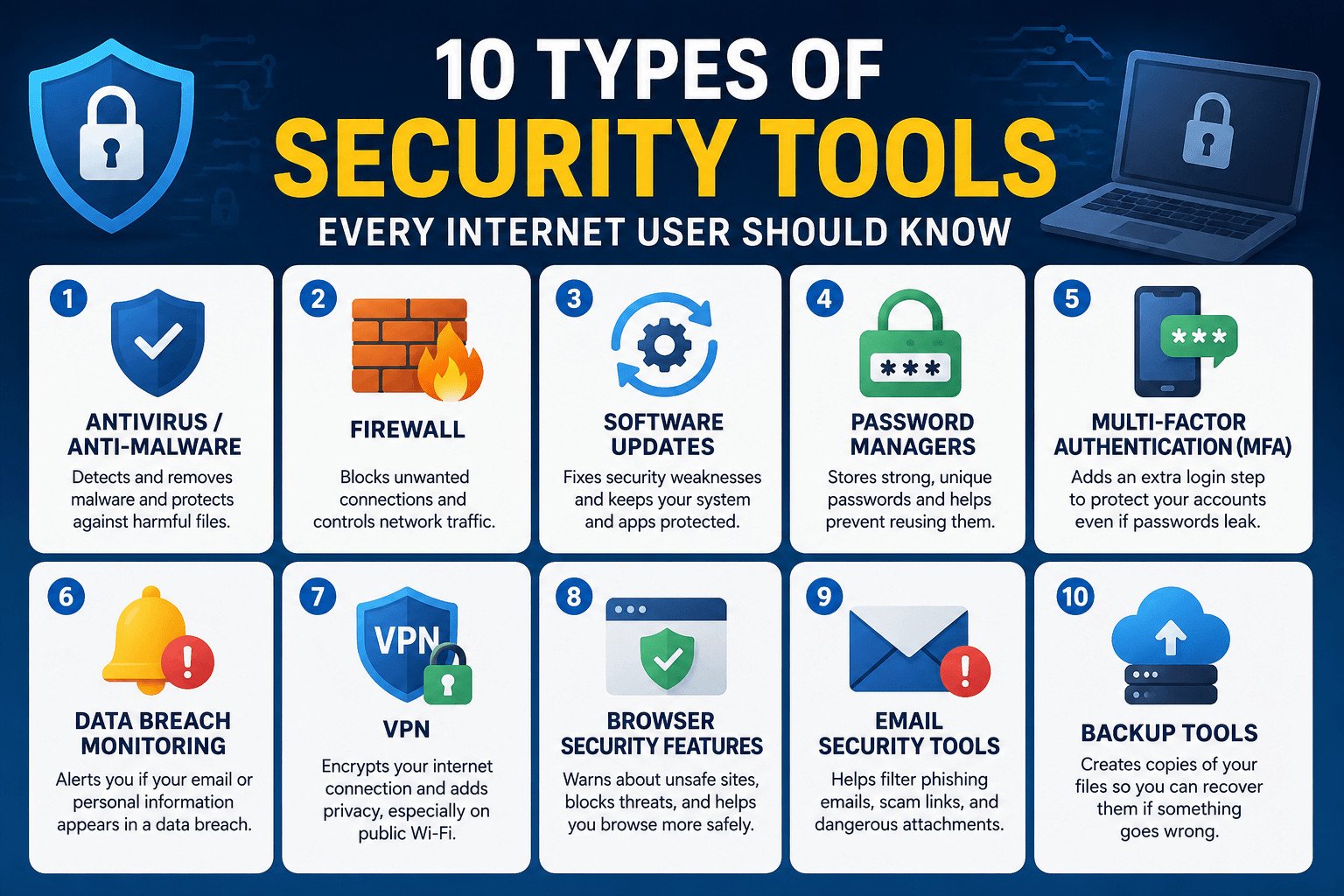
10 Types of Security Tools and What They Protect
Here is a simple overview before we go deeper.
| If your problem is…. | Use this security tool |
|---|---|
| Harmful downloads or fake apps | Antivirus / anti-malware |
| Unwanted network connections | Firewall |
| Old app or system weaknesses | Software updates |
| Weak or reused passwords | Password manager |
| Account hacking | Multi-factor authentication |
| Leaked email or password warnings | Data breach monitoring |
| Public or shared Wi-Fi privacy | VPN |
| Unsafe websites or risky downloads | Browser security features |
| Scam emails and fake links | Email security tools |
| Lost, damaged, or locked files | Backup tools |
The goal is not to collect as many tools as possible. The goal is to use the right tool for the risk you actually face.
The first group of tools protects the device you use every day: your phone, laptop, tablet, or work computer.
1. Antivirus and Anti-Malware Tools: For Harmful Files and Apps
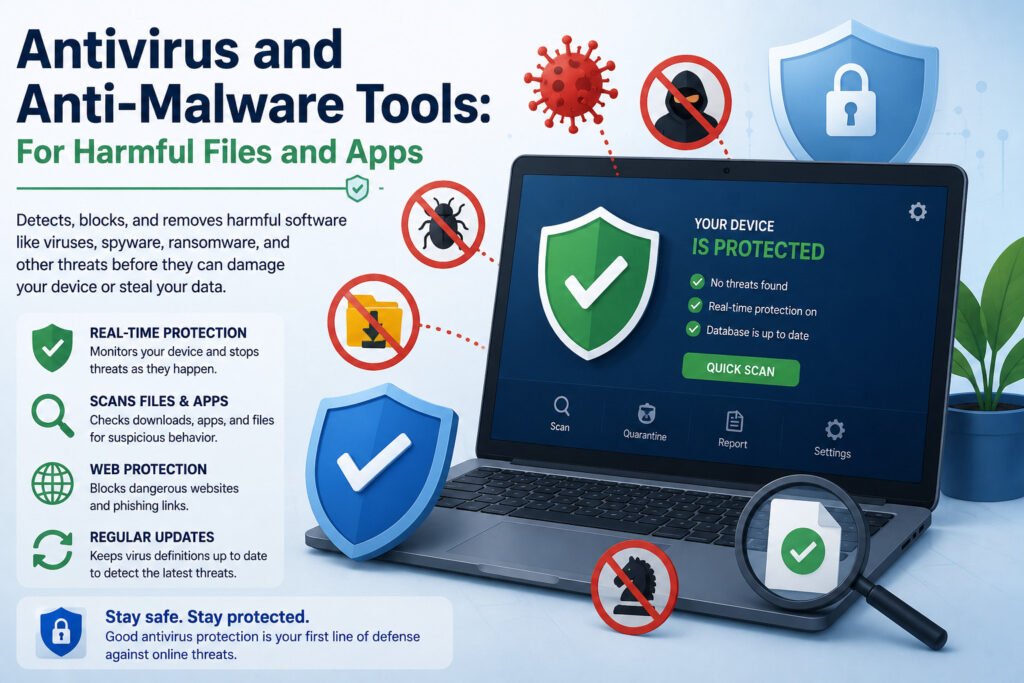
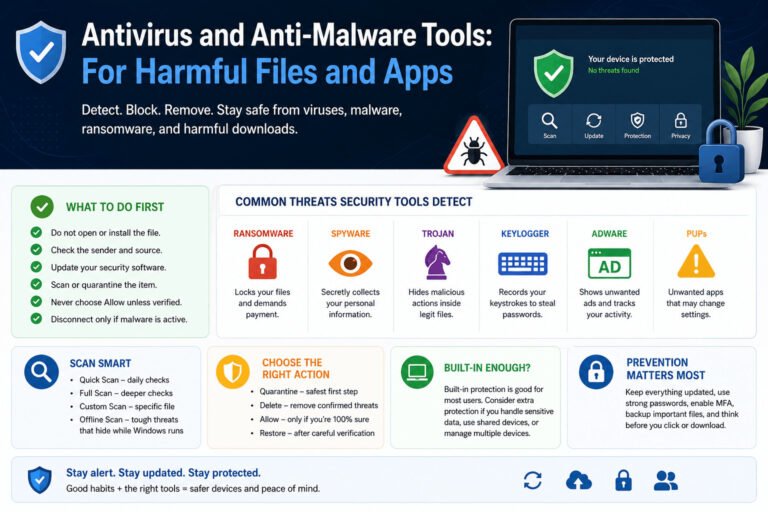
Antivirus and anti-malware tools help protect your device from harmful software.
Malware is software designed to damage your device, steal information, spy on activity, or block access to your files. It can appear as a fake app, infected download, suspicious attachment, or unsafe website file.
Antivirus tools usually check files, apps, and downloads for signs of danger. Many also warn you about known risky websites or suspicious links.
This matters because one infected device can cause real problems. A freelancer could lose client files. A student could lose assignments. A parent could lose family photos. A small business owner could expose customer information.
For example, someone may download a “free PDF editor” from an unknown website. The file looks normal, but it secretly installs malware. Antivirus software may warn the user before they open it or block the file before it causes damage.
Antivirus is not perfect, and it does not replace careful downloading. But for beginners, keeping antivirus protection active is one of the simplest ways to reduce risk.
Antivirus helps with harmful files, but device protection does not stop there. Your device also needs to manage which connections are allowed in or out.
2. Firewalls: For Blocking Unwanted Connections
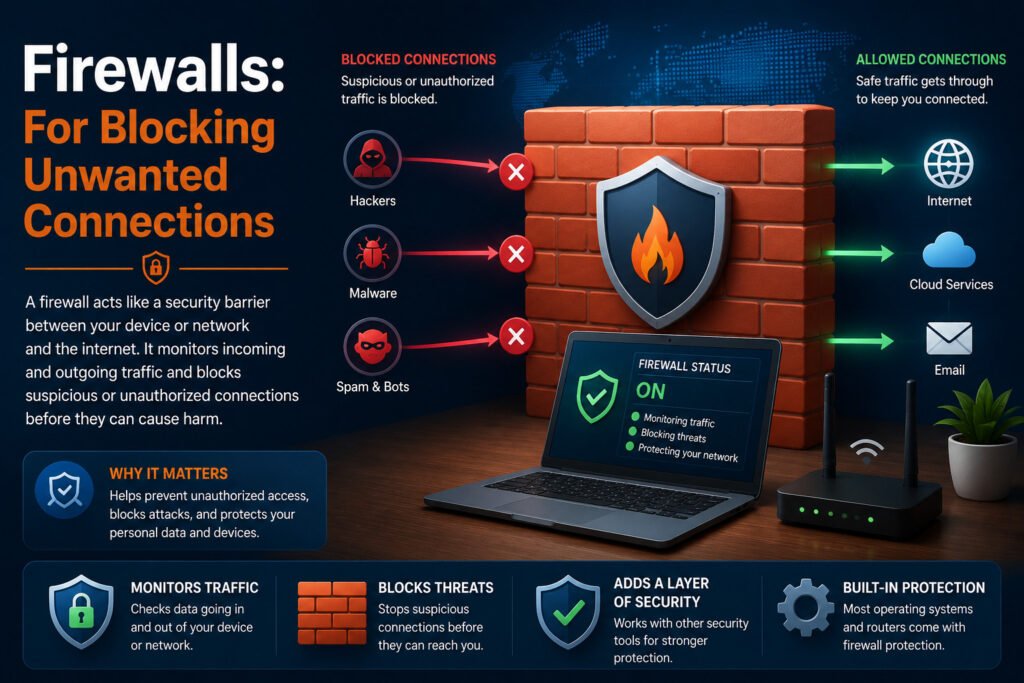
A firewall helps control what can connect to your device or network.
Think of it like a locked door for internet traffic. It does not stop every threat, but it can block some unwanted or suspicious connections.
Most modern computers include a built-in firewall. Many home routers also include firewall features. Beginners usually do not need to change advanced firewall settings, but they should avoid turning the firewall off without a clear reason.
A firewall is useful because not every online risk comes from something you download. Sometimes unwanted traffic tries to reach your device or network from outside.
For example, if a laptop is connected to a public network, the firewall can help limit unwanted connection attempts. That does not make the device fully protected, but it adds another layer of defense.
For everyday users, the best firewall habit is simple: leave it turned on.
Even with antivirus and a firewall, old software can still create openings. That is why updates matter more than many beginners realize.
3. Software Updates: For Fixing Security Weaknesses
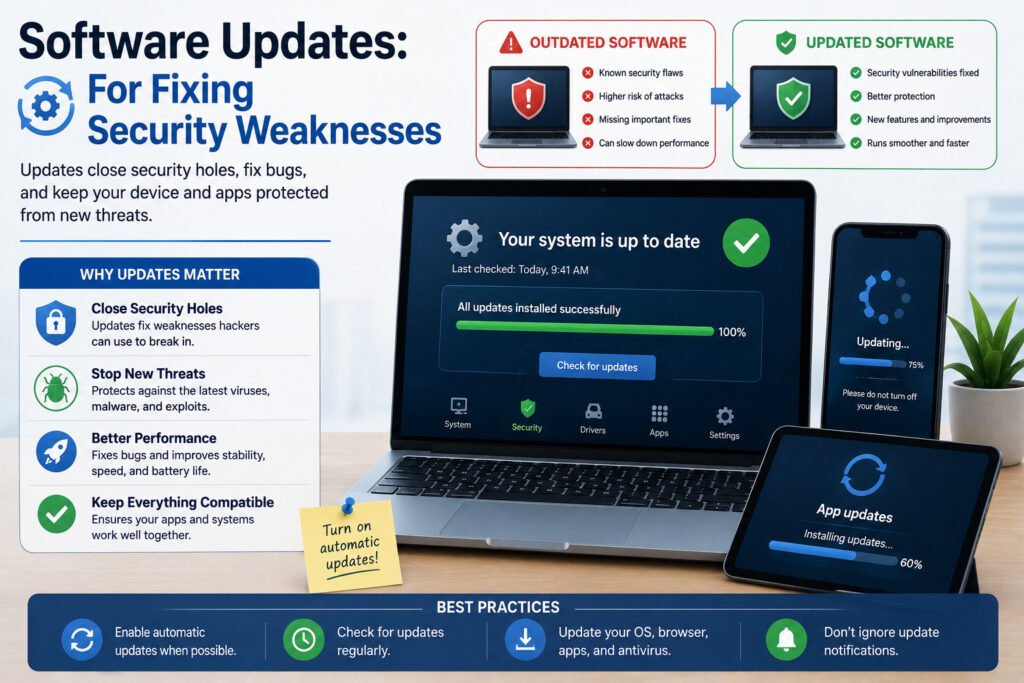
Software updates may not sound like a security tool, but they are an important part of online protection.
Phones, computers, browsers, and apps can have security weaknesses. Updates often fix those weaknesses before attackers can take advantage of them.
Many people delay updates because they feel annoying. That is understandable, but ignoring them for too long can leave old problems open.
This applies to your operating system, browser, email app, banking app, password manager, and other software you use often.
For example, an outdated browser may miss newer security fixes or handle website warnings less effectively. A phone that has not been updated in months may also miss important protections.
For beginners, the best option is to turn on automatic updates when possible. That way, your device and apps can receive security fixes without you having to remember every update manually.
Once your device is better protected, the next major risk is your online accounts. For most people, that starts with passwords.
4. Password Managers: For Stronger, Unique Passwords
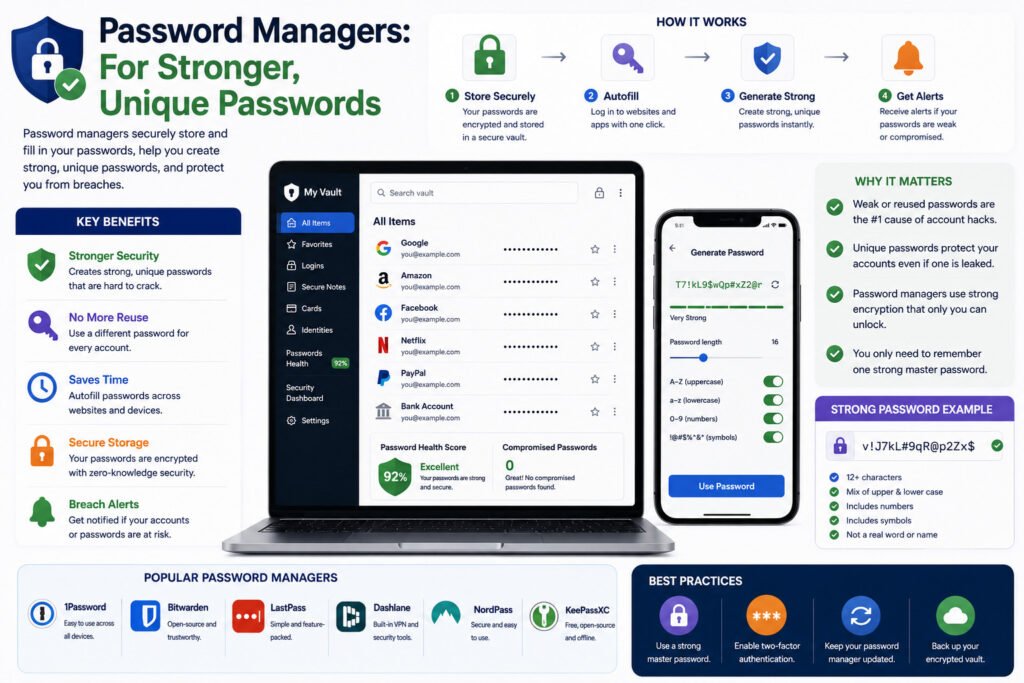
Many account problems start with weak or reused passwords.
If you use the same password on several websites, one leak can put many accounts at risk. Someone may try that same password on your email, banking, social media, shopping, or work accounts.
A password manager helps you create and store strong, unique passwords for each account.
Instead of remembering every password, you remember one main password. The password manager stores the rest and can fill them in when you need to log in.
This is useful because strong passwords are hard to remember when you use a different one for every account. Without a password manager, many people go back to simple or repeated passwords.
For example, a small online shop owner may use the same password for email, social media, and a payment account. If an old website leaks that password, someone could try it on the shop owner’s other accounts.
A password manager reduces that risk by helping the owner use a different password everywhere.
For beginners, this is one of the most useful security tools to start with.
Strong passwords are important, but passwords can still be stolen. That is why important accounts need one more layer.
5. Multi-Factor Authentication: For Extra Login Protection
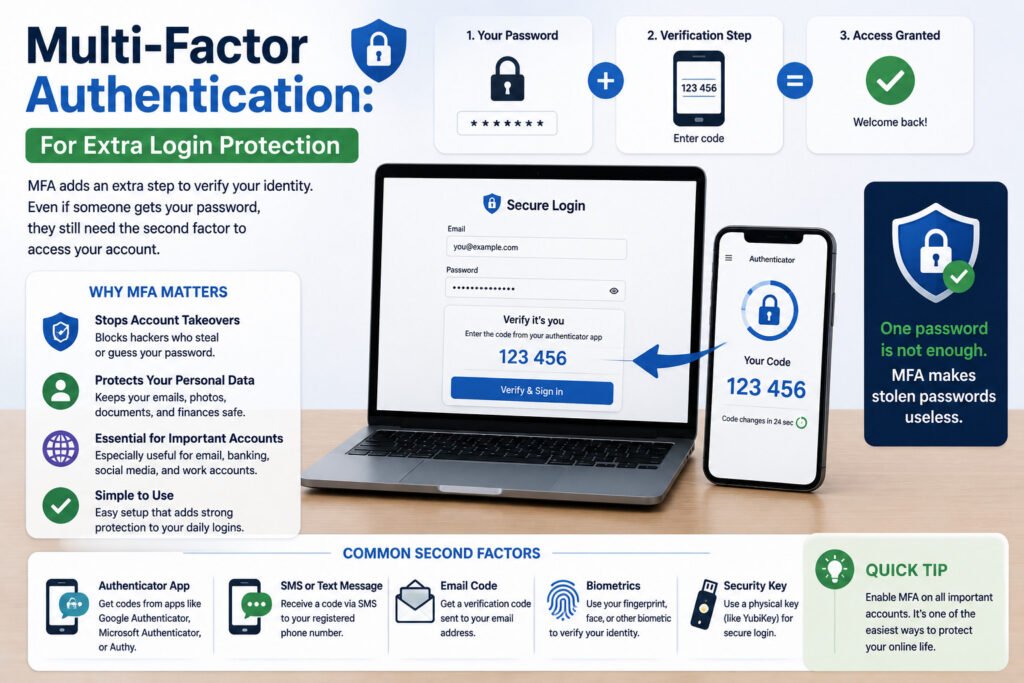
Multi-factor authentication, often called MFA, adds another step after your password.
That second step may be a code from an app, a phone prompt, a text message, or a physical security key.
The idea is simple: even if someone gets your password, they still need another proof before they can log in.
MFA is especially important for accounts that affect your money, identity, work, or personal data. This includes email, banking, social media, cloud storage, payment tools, and business accounts.
Your email account deserves extra attention because many services use email for password resets. If someone gets into your email, they may be able to reset passwords for other accounts.
For example, imagine someone steals your social media password through a fake login page. If MFA is turned on, the attacker may still be blocked because they do not have the second login step.
MFA does not make an account impossible to break into, but it makes a stolen password much less useful.
For beginners, turn on MFA first for email, banking, payment apps, and any account you cannot afford to lose.
Passwords and MFA help protect accounts before trouble starts. But sometimes you only learn about a problem after your information appears in a leak.
6. Data Breach Monitoring: For Leak Alerts
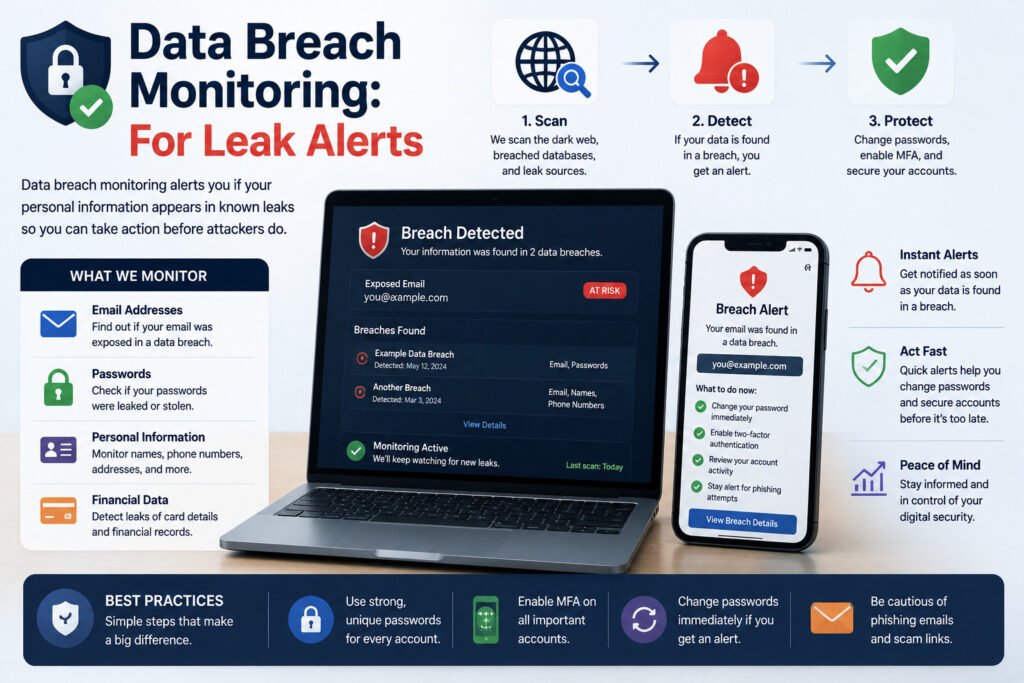
Data breach monitoring tools can warn you if your email address appears in a known data leak.
A data breach happens when information from a website, app, or company is exposed without permission. This may include email addresses, usernames, passwords, phone numbers, or other personal details.
Breach monitoring does not stop the leak from happening. It helps you react faster.
Some password managers also warn you about weak, reused, or exposed passwords. That can help you decide which passwords to change first.
For example, you may receive an alert saying your email address appeared in a breach from an old website you forgot about. If you used the same password somewhere else, you should change it immediately on every account where it was reused.
This tool is useful, but it has limits. It may not catch every leak, and it cannot protect an account if you ignore the warning.
Use breach alerts as a signal to act: change exposed passwords, stop reusing passwords, and turn on MFA where available.
Account protection is one side of online safety. The next part is your connection, especially when you use networks you do not control.
7. VPNs: For More Privacy on Public Wi-Fi
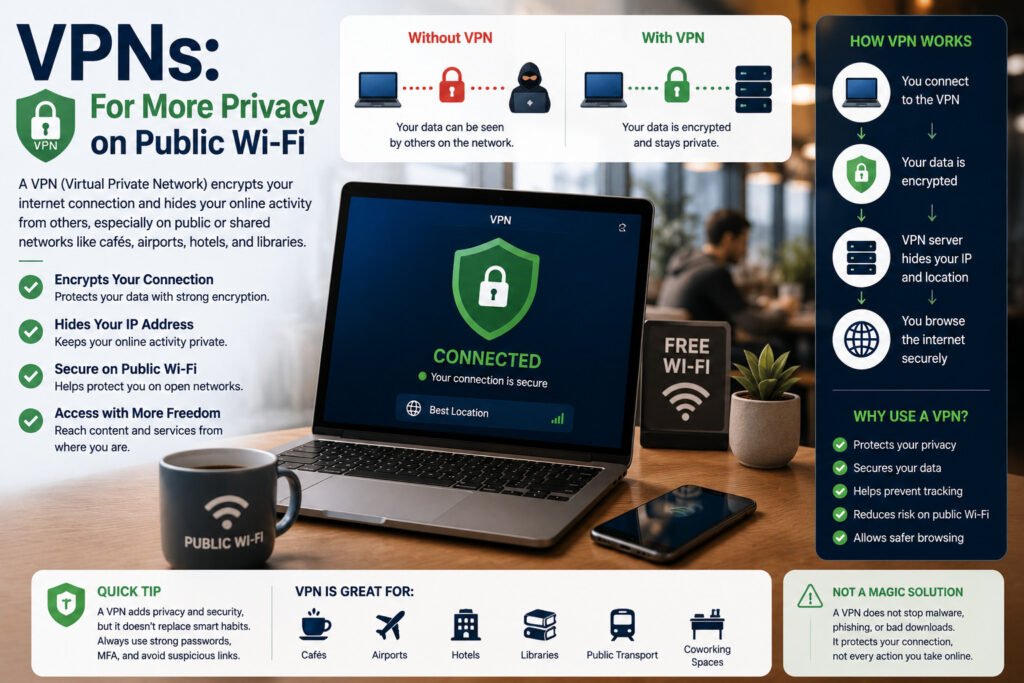
A VPN, or virtual private network, creates a more private connection between your device and the internet.
VPNs are often used on public or shared Wi-Fi, such as in cafés, airports, hotels, libraries, and coworking spaces. They can reduce what others on the same network may see about your connection.
But a VPN does not protect you from everything.
It will not stop you from typing your password into a fake website. It will not remove malware from your device. It will not fix weak passwords. It will not make every download safe.
A VPN protects parts of your connection, not every action you take online.
Also, many websites and apps already use encrypted connections. That means a VPN should be seen as extra privacy, not complete protection.
For example, a freelancer working from a café may use a VPN while checking email or logging into work tools. That can add privacy on the shared network. But the freelancer still needs strong passwords, MFA, browser warnings, and careful clicking.
A VPN is useful, but it is not a magic security button.
Even with a private connection, your browser is still where many risky links, fake pages, and unsafe downloads appear.
8. Browser Security Features: For Safer Browsing
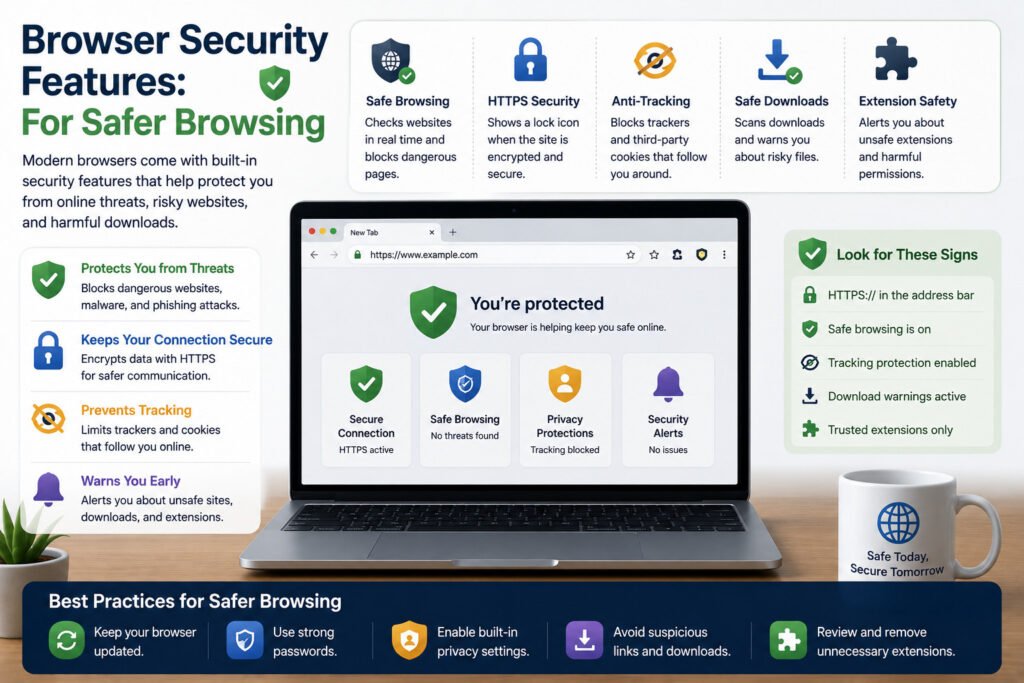
Your browser is one of the main places where online security matters.
Browser security features can warn you about unsafe websites, block pop-ups, stop some harmful downloads, and show whether a site uses HTTPS.
HTTPS means the connection between your browser and the website is encrypted. In simple terms, it makes the information harder for others to read while it moves between you and the website.
Most modern browsers include security warnings. The problem is that many people ignore them.
If your browser warns you that a website is unsafe, do not rush past the warning just because the page looks familiar. Fake websites can copy the design of banks, email services, delivery companies, and social media platforms.
For example, someone may receive a message saying their account will be closed unless they log in immediately. The link opens a page that looks real, but the browser warns that the site is suspicious. That warning may be the clue that stops the person from entering their password.
For beginners, keep your browser updated, avoid ignoring warnings, and be careful with downloads from unknown websites.
Many fake links do not begin in the browser. They arrive first in your inbox, which makes email protection another key part of daily security.
9. Email Security Tools: For Phishing and Scam Links
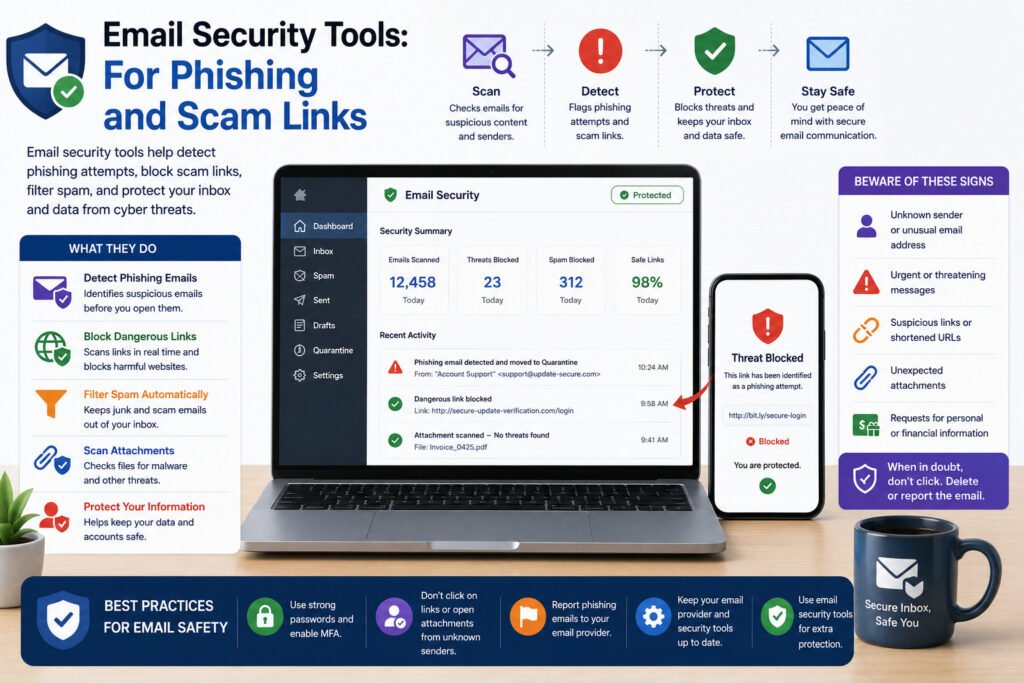
Email security tools help reduce scam emails, fake links, and suspicious attachments.
Phishing is when someone tries to trick you into doing something unsafe. That could mean clicking a fake link, opening a harmful file, sending money, or entering your login details on a fake page.
Email filters can catch many suspicious messages, but they will not catch every scam.
That is why users still need to check emails carefully.
Watch for urgent language, strange sender addresses, spelling mistakes, unexpected attachments, and links that do not match the real website. Be extra careful with messages about passwords, payments, deliveries, account closures, or security alerts.
For example, you may receive an email that looks like it came from your bank. It says your account will be blocked unless you log in now. The link leads to a fake page that asks for your password.
An email filter may catch it. If it does not, your own checking matters.
Email security tools are helpful, but careful reading is still part of online safety.
The tools above help prevent many problems. Still, no setup is perfect. If a device breaks, files disappear, or malware causes damage, you need a way back.
10. Backup Tools: For File Recovery
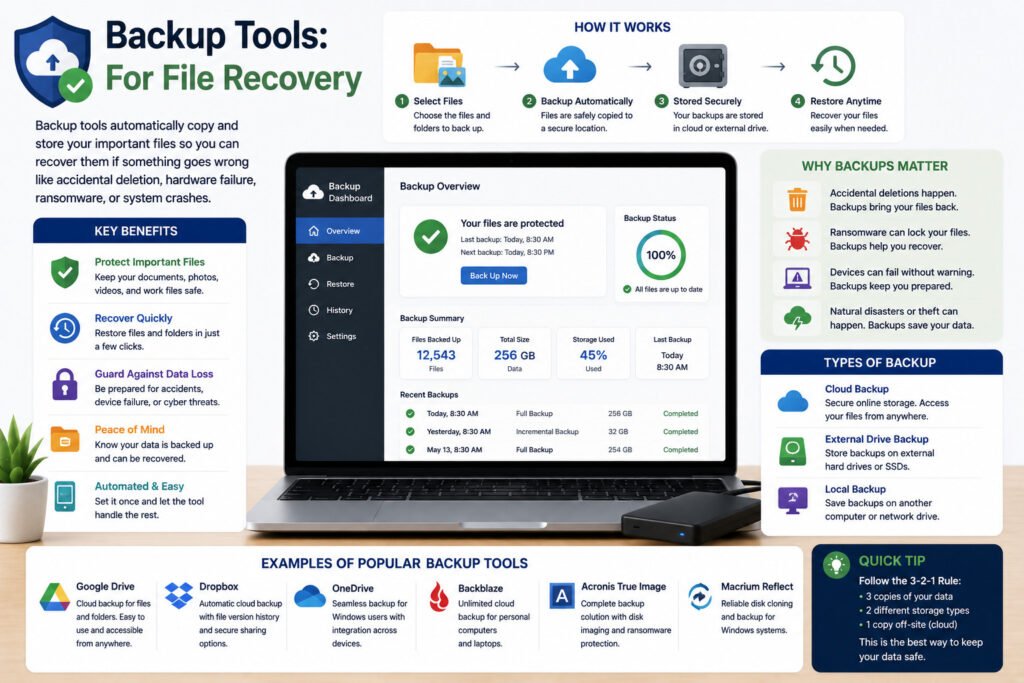
Backup tools help you recover files after something goes wrong.
A backup is a copy of your important files stored somewhere else. This may include documents, photos, schoolwork, invoices, website files, business records, or client projects.
Backups matter because not every security problem can be blocked. A device can break. A phone can be stolen. Malware can damage files. Ransomware can lock files and demand payment.
There are two common backup types.
Cloud backups store files online through a service. They are useful if your phone or laptop is lost because you can sign in from another device.
External backups store files on a separate device, such as an external hard drive or USB drive. They give you another copy outside your main device.
For better protection, keep at least one backup that is not always connected to your main device. Some malware can damage files on connected drives or synced folders.
For example, a student may keep assignments, notes, and project files on one laptop. If the laptop fails or malware damages the files, a backup can prevent weeks of work from disappearing.
Backups do not stop attacks. They reduce the damage after something goes wrong.
Now that each tool has a clear role, the practical question is simple: which ones should a beginner use first?
Which Security Tools Should Beginners Use First?
Beginners do not need every security tool at once. Start with the tools that reduce the most common daily risks.
First, protect your device. Keep antivirus or anti-malware protection active, leave your firewall on, and install updates when they appear.
Next, protect your accounts. Use a password manager and turn on MFA for email, banking, social media, payment tools, and work accounts.
Then protect your files. Set up backups for documents, photos, business files, schoolwork, and anything you cannot afford to lose.
After that, add tools based on your habits.
Use a VPN if you often connect to public or shared Wi-Fi. Pay closer attention to email security if you receive many suspicious messages. Use breach monitoring if you manage important accounts or business data.
A practical beginner setup could include:
- Antivirus or anti-malware protection
- Firewall turned on
- Automatic software updates
- Password manager
- MFA on important accounts
- Browser security features
- Email filtering
- Regular backups
Then add a VPN or breach monitoring if your daily use makes them useful.
The best security setup is not the biggest one. It is the one that protects your real risks without making daily internet use confusing.
Before wrapping up, here are quick answers to common beginner questions about these tools.
Related article: https://www.coursera.org/articles/cybersecurity-tools
FAQs About Types of Security Tools
What are security tools used for?
Security tools help protect your devices, accounts, passwords, files, and internet connection from common online risks. These risks include malware, phishing, weak passwords, unsafe downloads, account hacking, and file loss.
What are the most important types of security tools for beginners?
Beginners should usually start with antivirus protection, software updates, a password manager, multi-factor authentication, browser security features, email filtering, and backups. These cover many common everyday risks.
Do I need antivirus if I already use a VPN?
Yes. A VPN and antivirus software do different jobs. A VPN helps add privacy to your internet connection. Antivirus software helps detect or block harmful files, apps, and downloads. One does not replace the other.
Does a VPN protect me from phishing?
No, not by itself. A VPN does not stop you from entering your password on a fake website. To reduce phishing risk, pay attention to browser warnings, check links carefully, use email filters, and turn on MFA for important accounts.
Is a password manager safer than remembering passwords?
A password manager can help you use strong, unique passwords for each account. This is usually safer than reusing simple passwords across many websites. You still need a strong main password and MFA where possible.
What security tools should I use first?
Start with the basics: keep antivirus protection active, turn on software updates, use a password manager, enable MFA on important accounts, pay attention to browser and email warnings, and back up important files.
Final Thoughts
The best types of security tools are the ones that match your biggest risks.
If you worry about harmful downloads, start with antivirus protection. If you reuse passwords, start with a password manager. If you are worried about account hacking, turn on MFA. If you cannot afford to lose files, set up backups.
You do not need to become a cybersecurity expert. Start with the basics, use each tool for the job it is meant to do, and build safer habits as you go.