Antivirus and anti-malware tools help detect, block, quarantine, and remove harmful files and apps. But when a warning appears, many people are unsure whether to delete the file, isolate it, or ignore the alert.
The right response depends on what happened. A suspicious file that has not been opened is different from malware that is already changing settings, stealing passwords, or encrypting documents.
This guide explains what these security tools protect against, which scan to run, and how to respond without making the problem worse.
Table of Contents
What to Do First With a Suspicious File
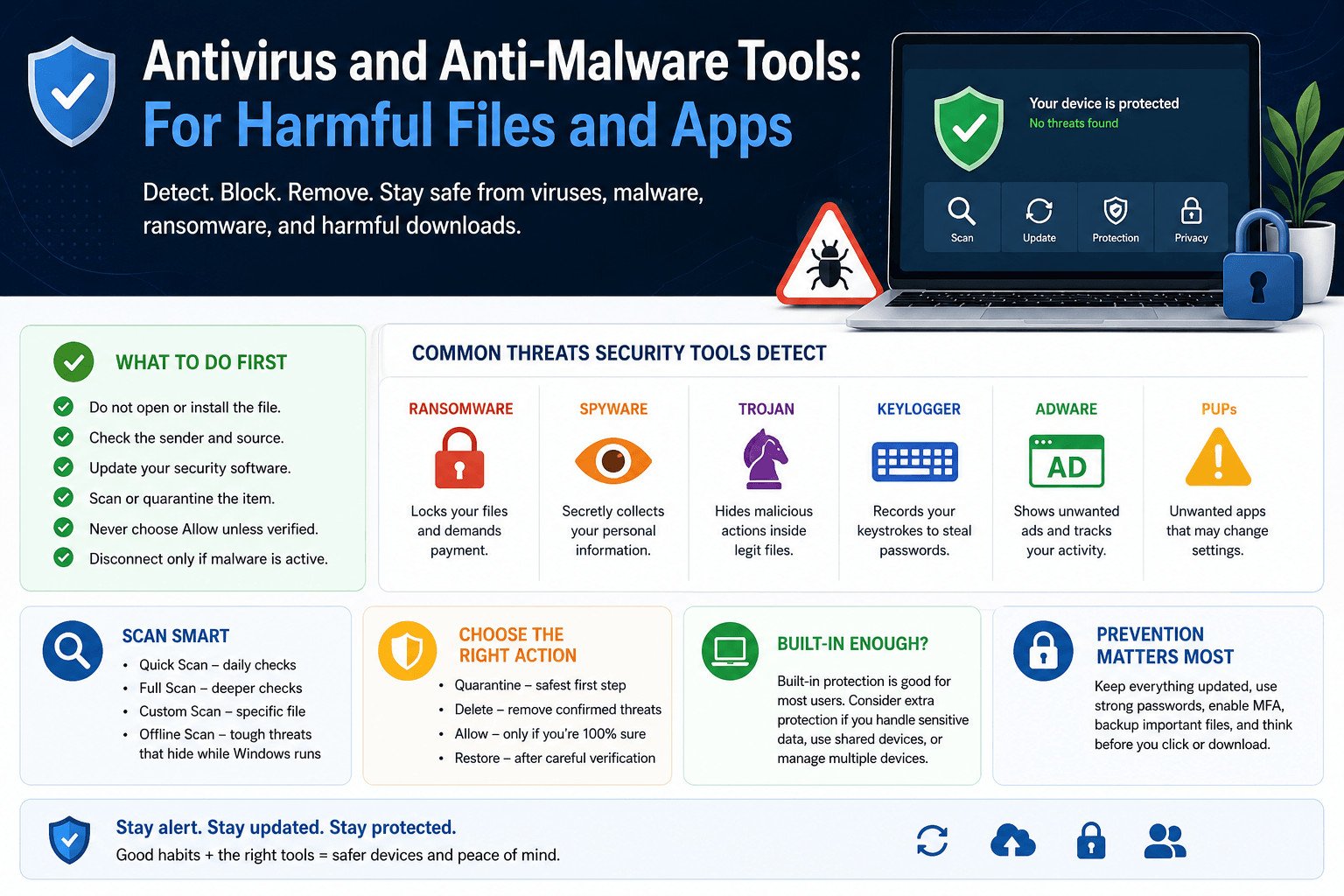
When a file, app, or download looks unsafe:
- Do not open or install it.
- Check the sender and download source.
- Make sure your security software is updated.
- Scan or quarantine the suspicious item.
- Do not choose Allow unless you have verified the file.
- Disconnect the device only if malware appears to be active.
When the file comes from someone you know, contact them through a trusted phone number or a separate message. Their email or social media account may have been compromised.
These first steps reduce the immediate risk. To understand why they matter, it helps to know what antivirus and anti-malware tools are actually looking for.
What Do Antivirus and Anti-Malware Tools Protect Against?
Antivirus and anti-malware tools look for malicious software and suspicious behaviour. Modern products often protect against many of the same threats, so the difference between the two names is no longer clear.
A computer virus is one type of malware. It copies itself by attaching to another file or program and becomes active when that file runs.
Malware is the broader term. It includes software designed to damage a device, steal information, interrupt work, or gain access without permission.
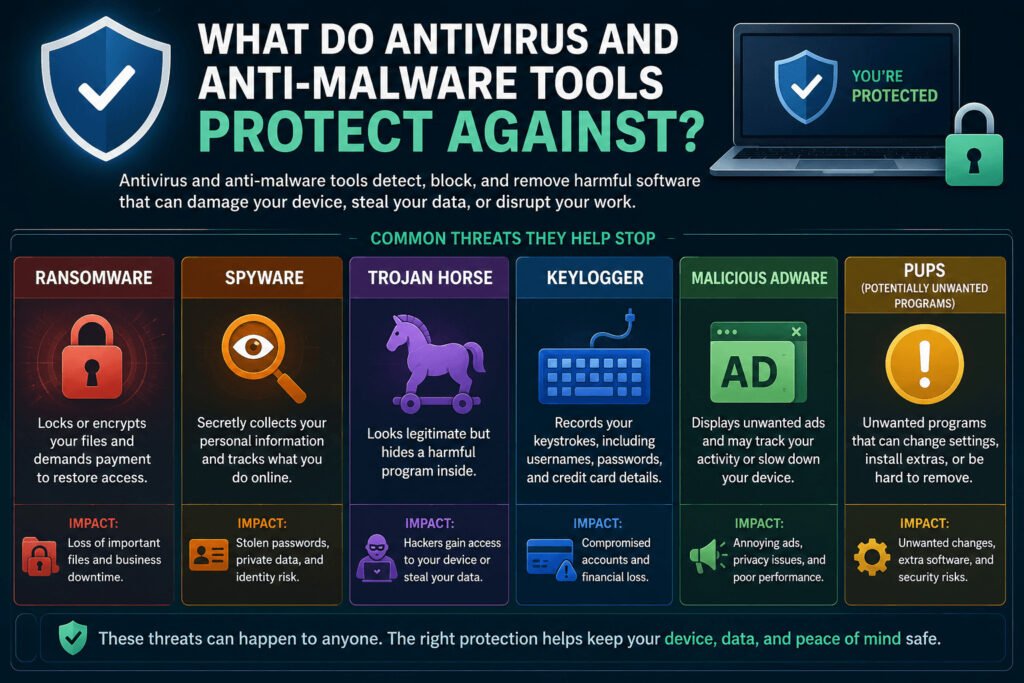
Common threats include:
| Threat | What it does | Possible result |
|---|---|---|
| Ransomware | Encrypts files or blocks access | Loss of access to personal or business documents |
| Spyware | Secretly collects information | Stolen passwords or private data |
| Trojan | Hides harmful actions inside a file that appears legitimate | Unauthorised access to the device |
| Keylogger | Records what someone types | Stolen login or payment details |
| Malicious adware | Displays intrusive ads and may track activity | Browser changes and privacy problems |
You may also see warnings about potentially unwanted applications. These programs are not always classified as malware, but they may show excessive ads, change browser settings, or install extra software without clearly explaining what they do.
For a freelancer or small business, one infected file can cause more than a slow computer. It may expose client records, interrupt paid work, or give an attacker access to email and payment accounts.
For example, a freelancer may receive an attachment that looks like a client invoice. The file is actually a trojan designed to steal passwords saved in the browser. Real-time protection may detect and block it before it runs.
Do not choose a security product based only on whether it is called “antivirus” or “anti-malware.” Check what it actually provides:
- Real-time protection
- Automatic security updates
- Ransomware protection
- Browser and phishing warnings
- Reliable quarantine and removal tools
Knowing the threat type is useful, but most people first notice a suspicious file rather than a clear malware label. The next step is checking that file without opening it.
How to Check a Suspicious File or App Safely
Do not open, install, or approve a suspicious file just to see what it contains. Pause and check where it came from.
Review the sender, website address, file name, and file type. On Windows, a file called invoice.pdf.exe is not a PDF. The final .exe means it is a program that can run instructions on the computer.
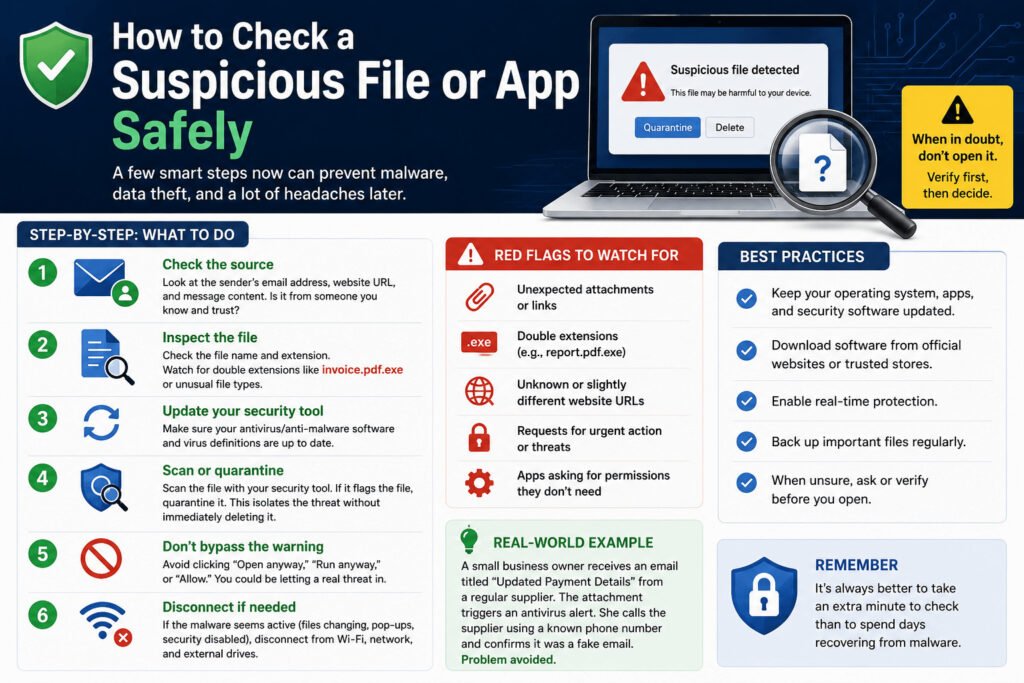
Common warning signs include:
- Unexpected attachments
- Misspelled file names
- Double file extensions
- Downloads from unofficial websites
- Apps requesting permissions they do not need
- Messages pressuring you to act immediately
Make sure your security tool has received its latest updates before scanning. Modern antivirus software may use known file patterns, behaviour checks, reputation information, and cloud-based analysis to identify threats.
On Windows, a custom scan can check one file, folder, USB drive, or download location. Other devices may offer different scanning options.
Do not select Open anyway, Run anyway, or Allow because you are in a hurry. These options can bypass a genuine warning.
Imagine a small business owner receiving an email titled “Updated Payment Details.” It appears to come from a regular supplier, but the attachment triggers an antivirus alert.
Instead of opening the file, the owner calls the supplier using a known phone number. The supplier confirms that the email is fake. That simple check prevents a possible account takeover or fraudulent payment.
When a file has been downloaded but never opened, quarantine or remove it and review the warning. You usually do not need to disconnect the entire device at this stage.
Disconnect from Wi-Fi, Ethernet, and shared drives when you see signs that malware is already active. These may include files changing without your action, security software switching off, unknown programs opening, or a ransomware message appearing.
Once the tool has flagged the file, the next decision is often less obvious: should you quarantine it, delete it, allow it, or restore it?
Quarantine vs Delete vs Allow vs Restore
Security tools may offer several actions after finding a suspicious file. The labels differ between products, but the choices are usually similar.
| Option | What it does | When to choose it |
|---|---|---|
| Quarantine | Isolates the file and prevents it from running normally | Best first choice when you are uncertain |
| Delete or remove | Removes the detected file | When the threat is confirmed and the file is not needed |
| Allow | Tells the security tool to ignore the warning | Only after confirming that the file is safe |
| Restore | Returns a quarantined file to its previous location | Only after careful verification |
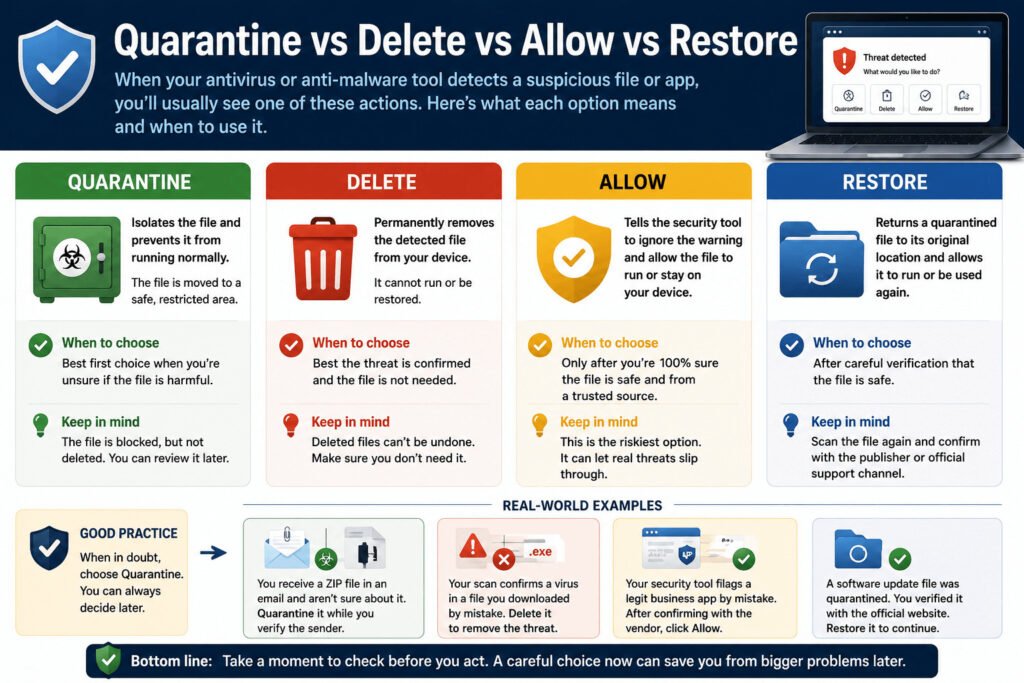
Quarantine
Quarantine is usually the safest first action. It places the file in an isolated area where it cannot run normally or access other files.
The item remains available while you review the alert. This gives you time to confirm whether the file is harmful or was blocked by mistake.
Delete or remove
Deleting removes the file from the device. Choose this when the threat is confirmed and the file is not needed.
Before deleting it, check the file name and location. A security warning may occasionally involve a legitimate business program or an important document.
Allow
Allow tells the security tool to ignore the detection. This is the riskiest choice.
Only allow a file when you trust the source and have confirmed through an official support channel that the warning is incorrect.
Restore
Restore returns a quarantined file to its previous location.
Use it only after checking the software publisher, scanning the file again, and confirming that it belongs to a genuine application or update.
For example, an accounting firm may install an update for its bookkeeping program and find that the antivirus quarantines one of the files.
Restoring it immediately could put customer records at risk if the download was fake or altered. The firm should contact the software provider through its official website before restoring anything.
When you are uncertain, leave the file in quarantine. Delaying access to one file is safer than returning a possible threat to a device that stores important information.
Choosing the right action deals with the detected file. If the device still behaves strangely, however, a deeper scan may be needed.
Quick, Full, Custom, or Offline Scan: Which Should You Run on Windows?
Scan options vary by security product and device.
The quick, full, custom, and offline scans described here are common options in Microsoft Defender on Windows. Macs, Android phones, iPhones, and iPads use different security systems and may not offer the same choices.
| Scan type | Best used for |
|---|---|
| Quick scan | Routine checks and minor warnings |
| Full scan | Continuing or unexplained problems |
| Custom scan | One file, folder, USB drive, or external disk |
| Offline scan | Threats that may hide while Windows is running |
Quick scan
A quick scan checks areas where malware commonly starts, including system memory, startup locations, and important system folders.
Use it after a minor warning or for a fast routine check.
Full scan
A full scan checks more files, folders, and programs. It takes longer but may be more suitable when suspicious behaviour continues.
Run one when unknown apps appear, the browser keeps redirecting, or a quick scan finds nothing but the device still behaves strangely.
Custom scan
A custom scan checks a location you choose.
Use it for a suspicious download, email attachment, USB drive, external disk, or specific folder.
Offline scan
An offline scan restarts a Windows device and checks it before the operating system fully loads.
This may help find threats that hide while Windows is running or interfere with normal scanning.
Suppose an employee downloads a compressed folder from an unfamiliar email. A quick scan finds nothing, but unwanted browser tabs begin opening later.
Repeating the same quick scan may not help. A full scan can check more of the system. An offline scan may be useful if the problem continues.
One slow program or pop-up does not prove that malware is present. Low storage, browser extensions, software updates, or hardware problems can cause similar symptoms.
Look for several unexplained changes or a direct warning from a trusted security tool.
The scan you need depends partly on the device. That leads to another common question: is the protection already built into your system enough?
Is Built-In Antivirus Protection Enough?
Built-in protection may be enough when the operating system still receives updates, its security features remain active, and the user installs apps only from trusted sources.
The answer also depends on the device.
Is Microsoft Defender enough for Windows?
Microsoft Defender may be suitable for careful home users who keep Windows updated, avoid unknown attachments, and download software from trusted websites.
Extra protection may help people who manage several devices, handle sensitive customer data, or need central controls and dedicated technical support.
How does built-in protection work on a Mac?
macOS includes security controls that check apps, restrict unauthorised changes, and block known harmful software.
Mac users should still keep the operating system updated and avoid installing apps from unknown websites. Macs can face harmful software and phishing attacks, even though their security system works differently from Windows antivirus.
Does Android need an antivirus app?
Android includes Google Play Protect, which checks apps for harmful behaviour.
Users who install apps only from the official Play Store, keep Android updated, and avoid suspicious links may not need another full security app.
The risk increases when apps come from unofficial stores or are installed through files received from other people.
Can antivirus scan an iPhone?
Traditional system-wide antivirus scanning does not work on an iPhone in the same way it does on Windows.
iPhone apps run inside restricted areas that limit access to other apps and system files. Security apps on iPhone usually focus on unsafe websites, phishing, account monitoring, and network protection rather than scanning the full operating system.
When extra protection may help
Consider additional protection when:
- Several people share one device
- You download many attachments or work files
- Your business manages several computers or phones
- Important client or financial data is stored locally
- You need central device management
- You want dedicated technical support
Paid plans may include identity alerts, password management, device controls, or wider web protection. A higher price does not automatically mean stronger malware detection.
A reputable on-demand malware scanner can provide a second check when the main antivirus finds nothing but suspicious behaviour continues.
Avoid running two full real-time antivirus programs at the same time. They may slow the device or interfere with each other.
Built-in protection can handle many everyday risks, but no security tool can guarantee that every threat will be stopped. Recognising the warning signs still matters.
Signs Malware May Already Be Running on Your Device
Deleting a suspicious download may not remove malware that has already run.
Some symptoms are minor and may have other causes. Others need immediate attention.
Possible warning signs
- The device becomes unusually slow
- Pop-ups appear repeatedly
- The browser redirects to unfamiliar websites
- Battery or mobile data use increases
- New browser extensions appear
These signs do not prove that malware is present. Software updates, low storage, browser problems, and legitimate background apps can cause similar symptoms.
Stronger warning signs
- Antivirus protection turns off without your action
- Security updates fail repeatedly
- Unknown apps or administrator accounts appear
- Files return after being deleted
- Messages are sent from your account without your knowledge
Urgent warning signs
- Files are renamed, encrypted, or impossible to open
- A ransom demand appears
- Payments or logins you do not recognise appear
- Business or customer data is exposed
- Several devices on the same network show similar problems
Imagine a remote worker opening a fake delivery notice. Later, contacts begin receiving strange messages from the worker’s email account.
The antivirus removes one file, but the messages continue. The attacker may already have the account password.
Related article: https://sagaaro.com/10-types-of-security-tools/
The worker should disconnect the affected device, report the incident, and change passwords from a clean computer.
Also investigate camera or microphone indicators that appear when you are not using an app that needs them. Check app permissions before assuming malware is responsible.
When several serious warning signs appear together, stop using the device for banking, email, or client work. Disconnect it from networks and shared storage, run an appropriate scan, and seek technical help if the problem continues.
Responding to a warning is important, but prevention reduces how often you need to make these decisions in the first place.
How to Prevent Harmful Files and Apps Before They Cause Damage
Security software works better when it is supported by careful habits.
Use this simple protection checklist:
- Turn on automatic operating system updates
- Keep browsers and apps updated
- Leave real-time protection active
- Install software from official stores or trusted websites
- Confirm unexpected attachments with the sender
- Use a different strong password for every important account
- Turn on multifactor authentication
- Back up important files
- Remove apps and browser extensions you no longer use
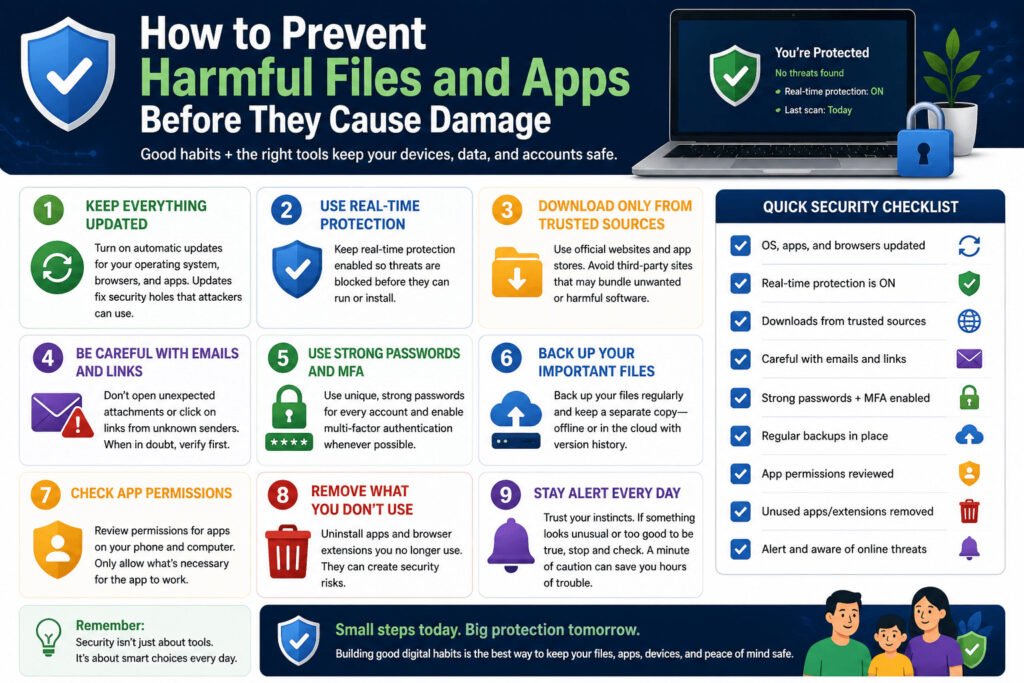
A backup should keep previous file versions or include a separate offline copy. A basic synchronisation service may copy encrypted or damaged files to the cloud.
Test occasionally that you can restore your files. A backup is only useful when recovery works.
Disconnect removable backup drives when they are not in use. Malware may damage storage that stays attached to an infected computer.
For example, a freelance bookkeeper could enable automatic updates, keep real-time protection active, and back up client records each day using cloud storage with version history.
The bookkeeper could also keep a separate offline copy of critical records. These actions reduce the risk that one harmful attachment will lead to lost files, missed deadlines, or exposed financial information.
The right antivirus and anti-malware tools should match your device, downloading habits, and the type of information you need to protect. Focus on the protection you will actually use rather than the longest feature list.
The final questions below address the decisions readers most often face after a warning appears.
Read also this article: https://www.kaspersky.com/resource-center/threats/malware-protection
Frequently Asked Questions
What is the difference between antivirus and anti-malware?
Antivirus originally focused on computer viruses, while anti-malware covered a wider range of harmful software. Today, the terms often overlap because modern antivirus products commonly detect ransomware, spyware, trojans, and other malware.
Do I need both antivirus and anti-malware software?
Most people do not need two full real-time security programs. One reliable, updated antivirus product may be enough. An on-demand malware scanner can provide a second check when unusual behaviour continues.
Should I quarantine or delete a suspicious file?
Quarantine is usually the safest first choice because it isolates the file without removing it immediately. Delete the file after confirming that it is harmful and not needed.
Can antivirus remove malware that is already installed?
Antivirus software can detect and remove many installed threats. Some infections may require a full scan, offline scan, specialist removal tool, or professional help. Removing one file may not repair changed settings or protect accounts that were already compromised.
Which scan should I run for a suspicious file?
Use a custom scan when you know which file or folder is involved. Run a full scan when suspicious behaviour continues. On Windows, an offline scan may help when malware hides while the operating system is running.
Is built-in antivirus protection enough?
Built-in protection may be enough for careful users who keep their devices updated and install apps from trusted sources. Extra protection may help businesses, people using shared devices, or anyone handling sensitive information.
Can Android phones and iPhones get malware?
Android devices can be affected by harmful apps, especially when software is installed from unofficial sources. iPhones use stronger app restrictions, but users can still face phishing, unsafe websites, account theft, and other security threats.
Is it safe to run two antivirus programs at the same time?
Running two full real-time antivirus programs is not recommended. They may slow the device, create conflicts, or interfere with each other. An on-demand scanner is a safer option for a second opinion.
What should I do if antivirus finds nothing but the device still acts strangely?
Update the security software and run a deeper scan. Check browser extensions, installed apps, storage space, and recent system changes. Use a reputable second-opinion scanner or contact technical support if the problem continues.