Learning how to choose a project management tool starts with your team’s real problems, not with the most popular app.
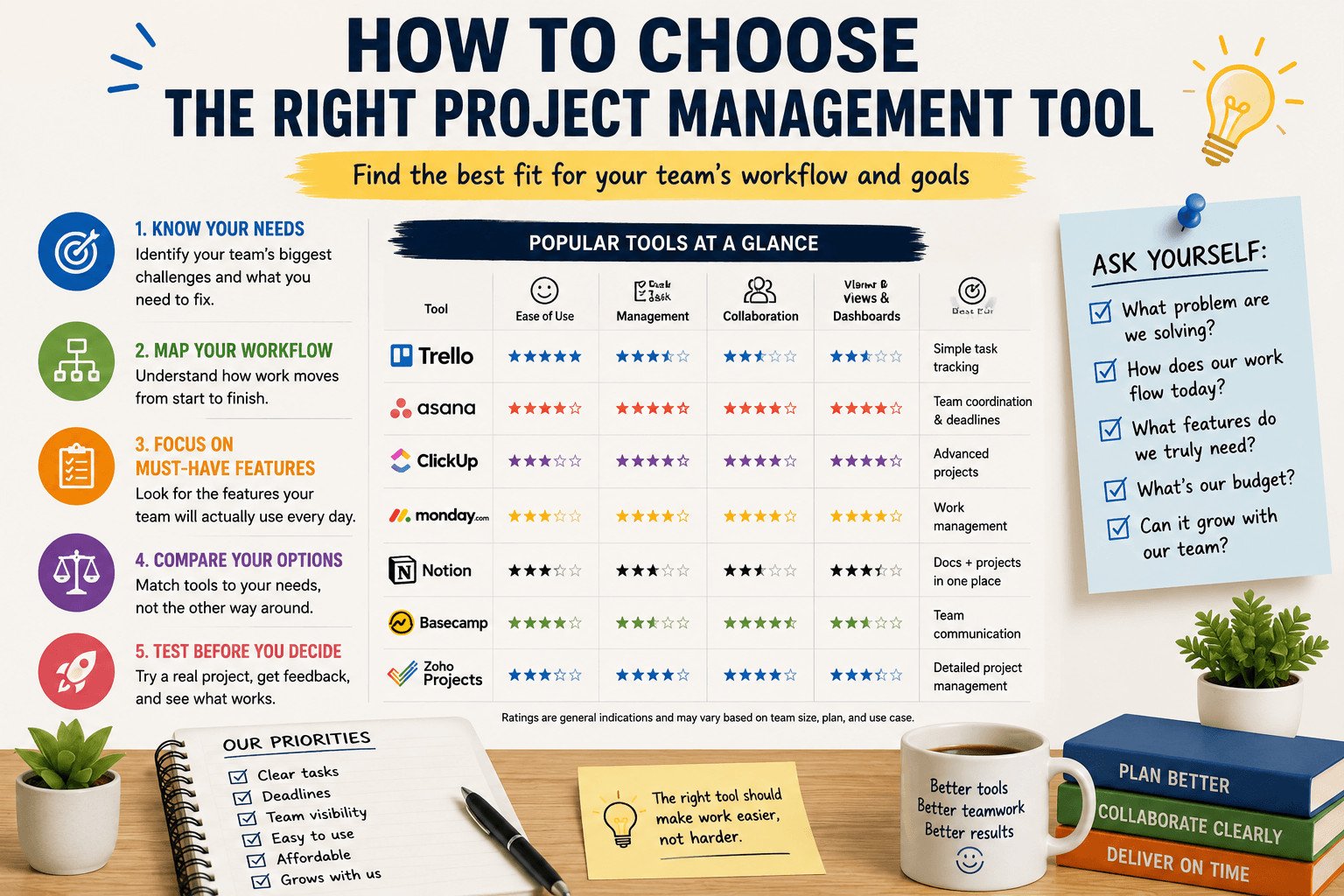
Trello, Asana, ClickUp, monday.com, Notion, Basecamp, and Zoho Projects can all help teams manage work. But they do not solve the same problems in the same way.
Before you compare tools, ask one question:
What is our team struggling with right now?
Table of Contents
What Is a Project Management Tool?
A project management tool is software that helps teams plan work, assign tasks, set deadlines, share updates, and track progress in one place.
Instead of keeping work across email, chat, spreadsheets, and personal notes, the tool gives everyone one shared place to see what needs to happen next.
That does not mean every team needs a complex setup. A small team may only need a simple board with tasks and deadlines. A growing team may need file sharing, client updates, dashboards, and reports.
Once you understand what the tool is supposed to do, the next step is to look at the problem it should solve for your team.
Start With the Project Problem Your Team Needs to Fix
Do not start by asking, “Should we use Trello, Asana, ClickUp, monday.com, Notion, Basecamp, or Zoho Projects?”
That question comes too early.
Start by looking at your current way of working.
Are tasks being forgotten? Are deadlines unclear? Do people keep asking, “Who is handling this?” Are files buried in email, chat, or random folders? Do clients ask for updates because they cannot see progress?
Each problem points to a different type of project management software.
A team that forgets tasks may need a simple task board or checklist. A team that misses deadlines may need due dates, reminders, and calendar views. A team with unclear roles may need task owners.
A task owner is the person responsible for completing or managing a specific task.
Imagine a small marketing team that publishes one blog post each week. The work includes choosing a topic, writing the draft, editing, creating an image, and publishing.
Without a clear system, the writer may submit late. The designer may not know when the image is needed. The editor may see the draft too late.
That team does not need the most advanced tool. It needs one place to show each step, who owns it, and when it is due.
After you name the main problem, you can start matching that problem to the way your team actually works.
How to Choose a Project Management Tool Based on Your Workflow
A workflow is the way work moves from start to finish.
A blog post may move from idea, to writing, to editing, to image creation, to publishing. A client project may move from request, to planning, to review, to approval, to delivery.
Your project management app should match that movement.
If your team handles simple tasks, a board-style tool may be enough. Boards usually use columns such as “To Do,” “In Progress,” and “Done.” This helps people see what is waiting, what is active, and what is finished.
If your team works around dates, choose a tool with due dates, reminders, and calendar views. This can help content teams, event teams, agencies, and small businesses that manage weekly deadlines.
If your team keeps notes, links, instructions, and documents in different places, a workspace-style tool may fit better. It gives people one place to find project information.
If your team works with clients, look for comments, file sharing, project updates, and sharing settings. Sharing settings control who can view, edit, or comment on project information.
A small design agency may need more than a checklist. It may need to share design files, collect client feedback, assign revisions, and show what has been approved.
At this point, you should have a clearer picture of your workflow. Now you need a simple way to check whether a tool fits that workflow before you sign up.
Before Choosing a Project Management Tool, Check These Things
Before you sign up for a tool, answer these questions:
- What problem does our team need to fix first?
- How does work move from start to finish?
- Who assigns tasks?
- Who approves work?
- How do we track deadlines?
- Where should files and comments live?
- How much setup can our team handle?
- What will the tool cost if we add more users later?
This checklist helps you avoid choosing a tool based only on screenshots, ads, or long feature lists.
That last point matters because feature lists can be distracting. A tool may look powerful on paper but still be the wrong fit for your team.
Project Management Features Beginners Should Actually Care About
Many beginners choose a project management tool because it has the longest feature list.
That feels safe at first. A tool with dashboards, automations, reports, forms, time tracking, charts, templates, and integrations can look more useful.
But more features can also mean more setup, more confusion, and more buttons your team never uses.
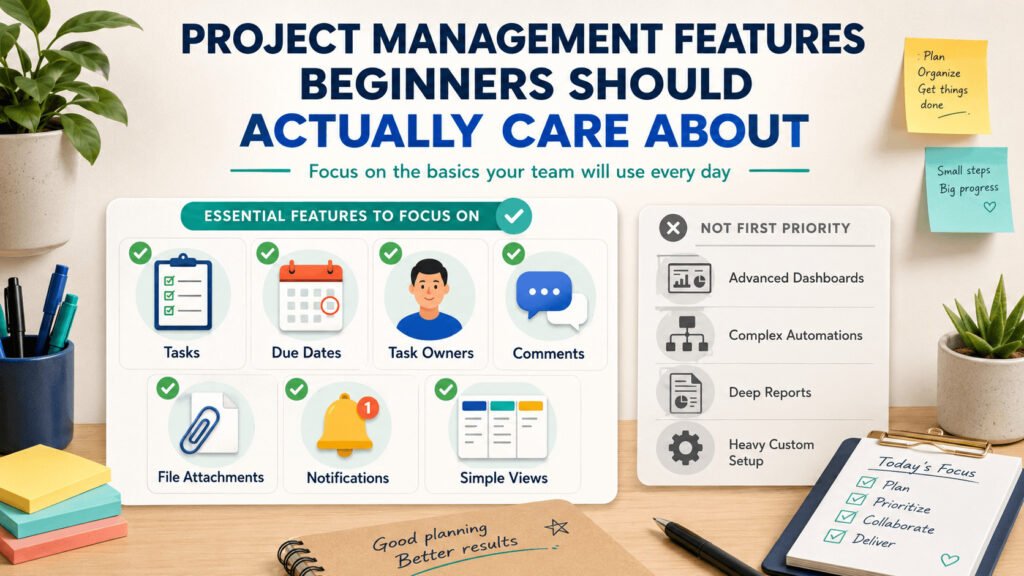
Start with the features your team will touch every day.
You need a clear place to create tasks. You need due dates so people know when work is expected. You need task owners so nobody has to guess who is responsible.
You also need comments so updates stay with the task instead of getting lost in chat. File attachments can help keep briefs, images, contracts, and documents easy to find.
A dashboard is a page that shows project progress, deadlines, workload, or overdue tasks in one place.
Dashboards can help, but only when people update their tasks. If the team does not use the tool properly, the dashboard will show the wrong picture.
For example, a small sales team may choose a tool with advanced reports. But their real problem is simple: sales reps forget to follow up with leads.
That team needs reminders, lead notes, assigned owners, and clear next steps.
When a tool takes too many steps to create tasks, update deadlines, or find files, people often return to spreadsheets, email, or private notes.
Once you know which features matter, comparing popular tools becomes much easier. You are no longer asking which tool has the most features. You are asking which one fits your team’s real need.
Project Management Tool Comparison: Match Each Tool to a Team Need
Popular tools can look similar at first, but they are not built for the same type of team.
Do not start by asking, “Which tool is the best?” A better question is, “Which tool fits the way our team works every week?”
Trello is a good fit when your team wants a simple visual board. It works well for moving tasks through stages like “To Do,” “In Progress,” and “Done.”
Asana fits teams that need clear task owners, due dates, and project steps. It can help when people need to know what they own and what happens next.
ClickUp and monday.com may fit teams that need more project views, dashboards, automations, and ways to track several projects at once. They can be useful for growing teams, but they may take more time to set up properly.
Notion fits teams that want notes, documents, project plans, and tasks in one flexible workspace. It is useful when project information is scattered, but it can become messy without clear rules.
Basecamp fits teams that want messages, to-dos, schedules, files, and project updates in one simple place. It can work well when communication is the main problem.
Zoho Projects fits teams that need task tracking, time tracking, milestones, reports, and budget-related project details. It may suit teams that want more project structure without choosing a heavy setup.
Here is a simple way to compare them:
| If your team needs… | Consider… |
|---|---|
| Simple visual task tracking | Trello |
| Clear owners and deadlines | Asana |
| Multiple views and dashboards | ClickUp or monday.com |
| Notes, docs, and tasks together | Notion |
| Simple team communication and files | Basecamp |
| Time tracking and detailed project structure | Zoho Projects |
A small content team may only need columns called “Ideas,” “Writing,” “Editing,” and “Published.” Trello or Asana may be enough.
An agency managing several clients may need comments, file sharing, timelines, approvals, and reports. In that case, monday.com, ClickUp, or Zoho Projects may fit better.
This comparison can help you narrow the list, but it should not be the final decision. The real test is how the tool performs with your actual work.
Test the Tool With One Real Project Before You Pay
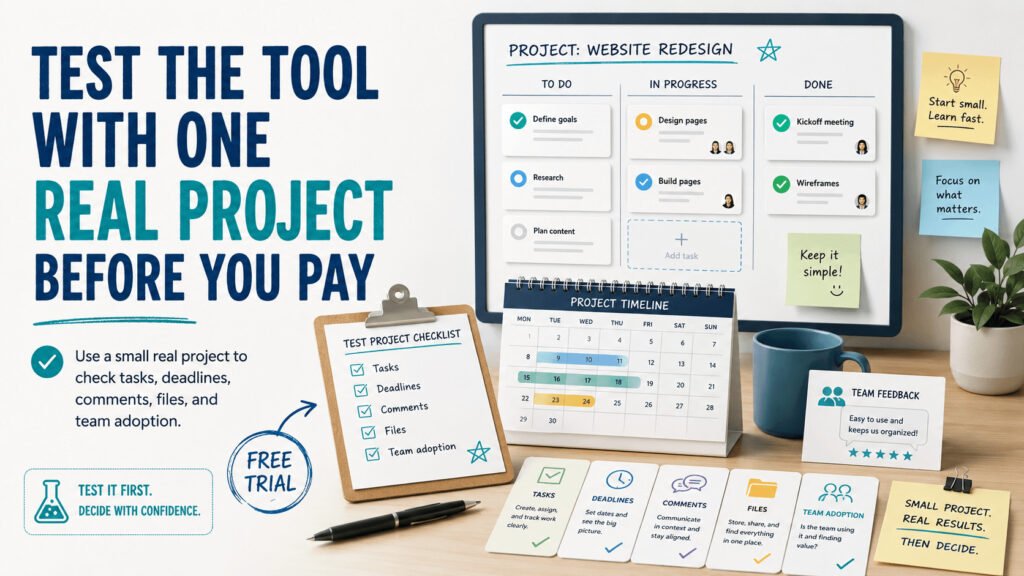
Do not choose a tool after watching one demo or reading a feature list.
A tool can look simple in a video and feel confusing during real work.
Test it with one real project.
Choose a small project your team already understands. Add the real tasks, deadlines, files, and people. Then watch how the tool behaves during normal work.
Can team members create a task without help? Can they find their assigned work? Can they add comments, upload files, and mark tasks as complete?
If basic actions feel difficult, the tool may create extra work.
Also watch where updates happen. If people still send most updates through private messages, email threads, or separate spreadsheets, the tool is not becoming the main place for project work.
For example, a team testing a tool for a website redesign could add tasks for writing page copy, choosing images, reviewing designs, fixing bugs, and publishing pages.
After one week, ask direct questions:
- Are deadlines clearer?
- Does each task have an owner?
- Are comments easy to follow?
- Are files easier to find?
- Do people use the tool without being reminded?
A free trial only helps when you test real work. Do not spend the trial clicking around with fake tasks.
Give the tool a real job and judge the result.
If the tool works well during a small test, the next question is whether it can still work when your team grows or your projects become more detailed.
Choose Software That Can Grow With Your Team
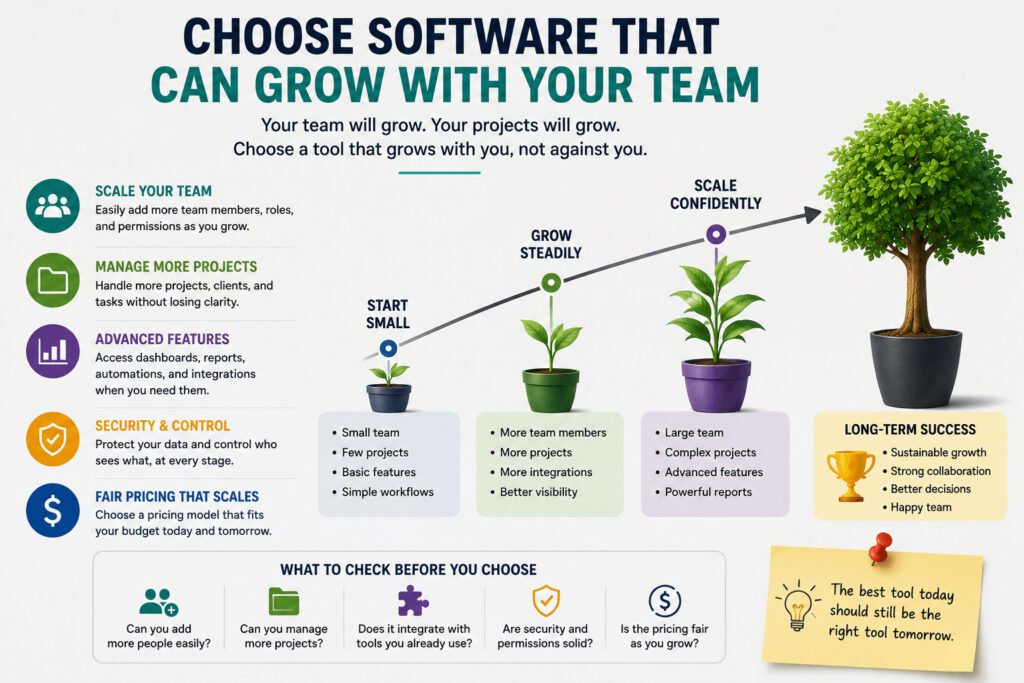
Your tool should fit your team now and still work when projects become more complex.
That does not mean you need the biggest tool. It means the tool should handle more people, more projects, and more details without making daily work harder.
Check the basics before you choose.
Can you add more team members? Can you create separate projects for clients, departments, or campaigns? Can you control who sees certain information?
Also check whether the tool connects with apps your team already uses, such as email, calendars, file storage, or chat.
Check pricing too.
Some tools are affordable for two or three users but become expensive when you add more people, advanced views, reporting, or storage. Pricing can also change by plan, region, and billing cycle, so review the pricing page before you commit.
Reporting means checking what is done, what is late, who has too much work, and which projects need attention.
You may not need detailed reports now, but they can help when you manage more projects at once.
For example, a small agency may start with three people and five client projects. A simple board may work well.
Later, if the agency grows to ten people and fifteen client projects, it may need sharing settings, workload views, timelines, and progress reports.
Choose a tool with room to grow, but do not choose one that feels heavy from day one.
Even then, software alone will not fix messy teamwork. The tool needs simple rules so everyone uses it the same way.
Set Simple Rules So Your Team Actually Uses the Tool
Choosing the tool is only the first step.
The real value comes from how your team uses it every day.
Even a good tool becomes messy without basic rules. People may name tasks in different ways, forget due dates, upload files in random places, or discuss important updates outside the tool.
Create a simple team system.
Write task names clearly. Use “Write homepage draft” instead of “Homepage.” Add one owner to each task. Set a due date when the task has a deadline.
Keep comments, feedback, and files inside the task.
This helps people avoid searching through email, chat apps, and personal notes.
For example, a small content team could create one task for each article. Each task includes a writer, editor, due date, image attachment, and publishing date.
Feedback goes in the task comments, not private messages. Once the article is live, the task moves to “Published.”
Now the writer knows what to do. The editor knows when to review. The manager can check progress without asking for updates every day.
After a few weeks, review the system. Remove columns, labels, or fields nobody uses. Keep the parts that help people work with less confusion.
These simple rules also answer many of the common questions beginners have when choosing a project management tool.
Read this article: https://asana.com/resources/project-management-software-buyers-guide
FAQ: How to Choose a Project Management Tool
What is the best project management tool for beginners?
There is no single best project management tool for every beginner.
A beginner should choose based on the main problem they need to fix. If the team needs simple visual task tracking, Trello may work well. If the team needs clear task owners and deadlines, Asana may be a better fit. If the team needs notes, docs, and tasks together, Notion may make sense.
How do I choose a project management tool for a small team?
Start with your team’s biggest problem.
Then check whether the tool is easy to use and supports task owners, due dates, comments, file sharing, and simple project views. Test it with one real project before paying for a full plan.
What features should a project management tool have?
Most beginners should look for tasks, task owners, due dates, comments, file attachments, notifications, and clear project views.
Advanced dashboards, automations, and reports can help later, but they should not be the first reason you choose a tool.
Is Trello, Asana, ClickUp, monday.com, Notion, Basecamp, or Zoho Projects better?
Each tool fits a different need.
Trello is useful for simple boards. Asana is useful for task owners and deadlines. ClickUp and monday.com are stronger when teams need more views and dashboards. Notion is useful for notes, docs, and tasks together. Basecamp is useful for team communication and shared project space. Zoho Projects is useful for more detailed project structure, time tracking, and reports.
Should I use a free project management tool first?
Yes, a free plan or trial can help you test the tool.
But test it with real work. Add real tasks, real deadlines, real files, and real team members. A tool that works with fake examples may not work well during a real project.
When should a team switch project management tools?
A team should consider switching when tasks are missed, deadlines are unclear, updates are scattered, files are hard to find, or the current tool takes too much effort to use.
Before switching, check whether the problem is the tool or the way the team uses it. Sometimes a simple rule change can fix the issue.
Final Takeaway
The best way to choose a project management tool is to stop comparing every feature at once.
Start with your team’s real problem. Look at your weekly workflow. Decide which features you will actually use. Test the tool with one real project. Then set simple rules so the team knows how to use it.
Before you choose, write down four things:
- Your team’s main problem
- Your weekly workflow
- Your must-have features
- Your budget
Then compare tools based on that list.
That is how to choose a project management tool that fits your team instead of forcing your team to fit the tool.