You turn on your VPN to protect your browsing, but your internet suddenly feels slow. Videos buffer. Websites load late. Downloads take longer than usual.
If your VPN is slowing down internet speed, the cause is usually a server, protocol, Wi-Fi, or device issue. In many cases, you do not need a new VPN right away. You need to test the connection, change a setting, or choose a better server.
Before you start changing random settings, it helps to understand what a VPN does to your connection.
Table of Contents
Why Is My VPN Slow When I Turn It On?
A VPN can slow your internet because your traffic takes an extra stop before it reaches the website or app you want to use.
Without a VPN, your device connects through your internet provider and loads the page directly. With a VPN, your traffic first goes to a VPN server. Then it moves to the website or app. That extra route can add delay.
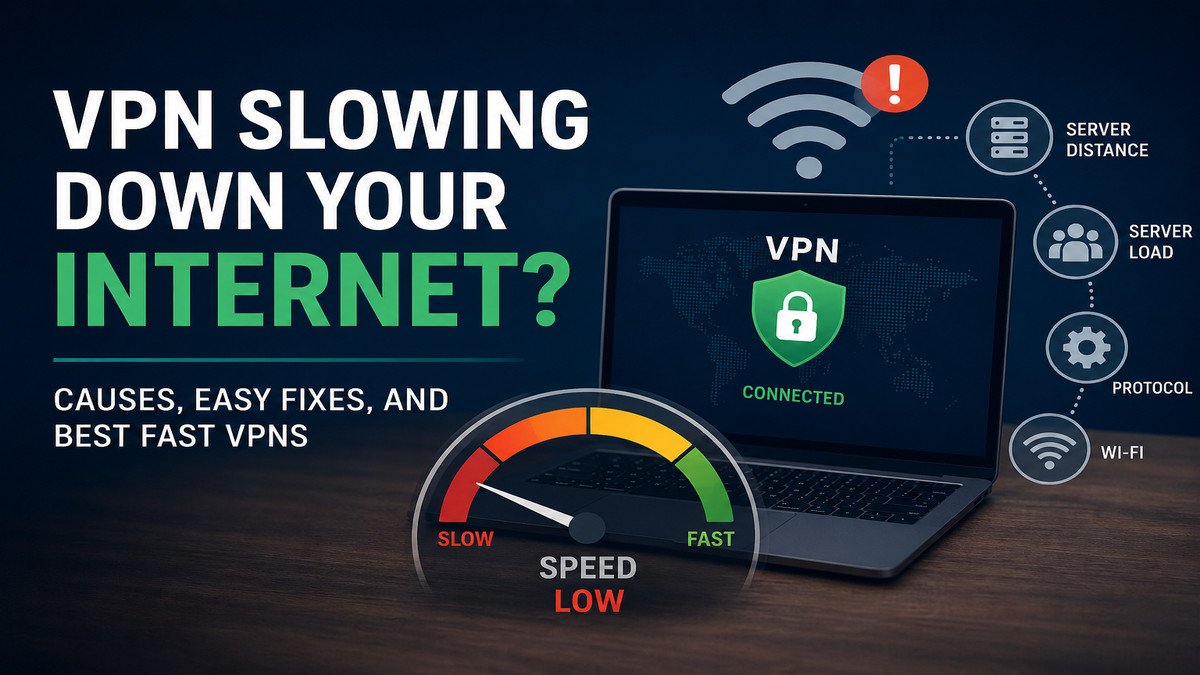
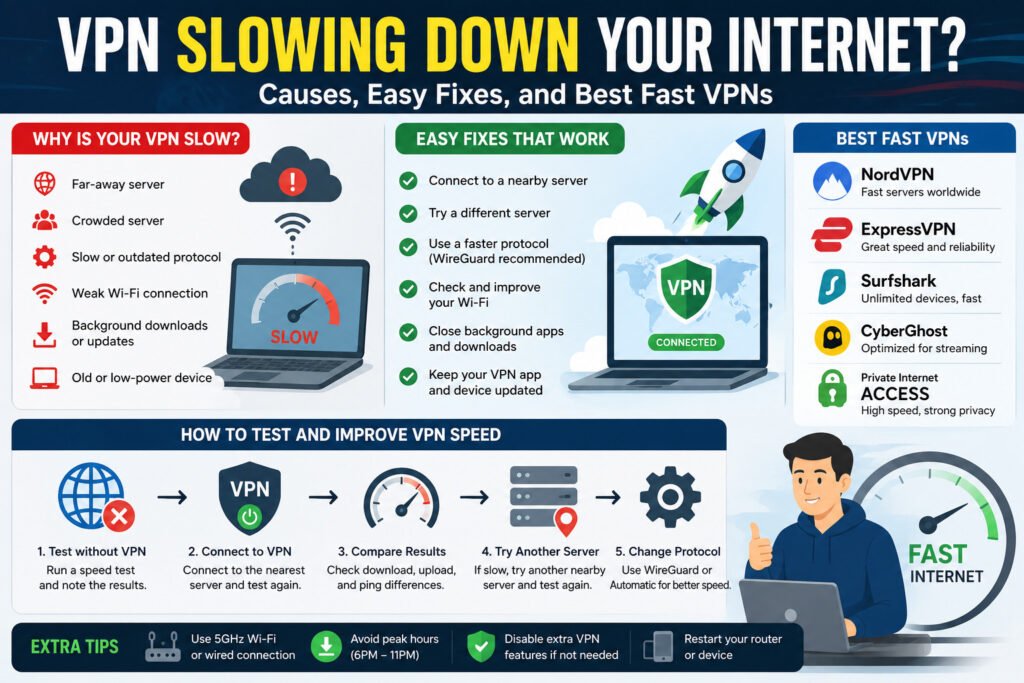
The most common reasons a VPN feels slow are:
- A far-away VPN server
- A crowded VPN server
- A slower VPN protocol
- Weak Wi-Fi
- Background downloads or updates
- An older or low-power device
Server distance can affect speed, especially latency. Latency is the delay between sending a request and getting a reply. Ping is the number you often see in speed tests to show that delay.
Lower ping usually feels faster. Higher ping can make video calls, online games, and live meetings feel delayed.
For example, if you are in Somalia and connect to a VPN server in the United States, your data travels much farther than it would through a closer server in Europe, the Middle East, or Africa. That longer route can lead to slower loading, more buffering, or higher ping.
Server load can also slow things down. Server load means many people are using the same VPN server at the same time. When a server is busy, browsing, streaming, and downloads may feel slower.
Encryption also takes work. Encryption scrambles the data between your device and the VPN server so people on the same network cannot easily read it. This is useful on public Wi-Fi, but your phone, laptop, or router has to do extra work. Older devices may feel slower when the VPN is on.
Imagine a small business owner joining a video call with a client. They connect to a far-away VPN server. The call freezes, the audio cuts out, and file sharing takes longer. The business looks unprepared, even though the real cause may be the VPN route.
A slow VPN does not always mean the VPN is broken. But guessing will not help much. The quickest way to find the real cause is to compare your speed with the VPN off and on.
How to Test If Your VPN Is Slowing Down Your Internet
Before you delete your VPN app or pay for a new one, run a simple VPN speed test. This helps you see whether the VPN is the real problem or whether your Wi-Fi, device, or network is slowing you down.
Start with the VPN turned off. Open a trusted internet speed test website and check three numbers:
Download speed: how fast you can load websites, videos, and files.
Upload speed: how fast you can send files, post content, share your screen, or join video calls.
Ping: the latency result that shows how long your device waits for a reply from a server.
Write down the results.
Turn the VPN on and connect to the nearest useful server. If you are in East Africa, a nearby server may perform better than one in the United States or East Asia.
Run the same speed test again.
Compare both results. Some speed loss is normal when a VPN is on. If websites still load quickly, calls stay clear, and videos do not buffer, the drop may not matter.
If the VPN makes videos buffer, calls freeze, pages load slowly, or uploads take much longer, check the server, protocol, Wi-Fi, and device.
Try one more VPN server in a nearby location. Avoid choosing a random far-away country. Run the test again. If the second server is faster, the first server may have been crowded or unstable.
After that, check your VPN protocol. A protocol is the connection method your VPN uses. Some protocols focus on speed. Others focus more on compatibility, privacy, or working on restricted networks.
If your VPN offers WireGuard or an “Automatic” option, test it. WireGuard is often fast, but the best protocol still depends on your VPN app, device, server, and network.
For example, a freelancer may need to send large design files to a client. With the VPN off, uploads work normally. With the VPN on a far-away server, each file takes much longer. After switching to a nearby server and a faster protocol, the upload finishes sooner, and the deadline stays safe.
This test helps you avoid guessing. If the server is not the issue, the next place to look is the protocol setting.
The VPN Protocol Setting That Can Improve Speed
One VPN setting can change how fast your connection feels: the VPN protocol.
A VPN protocol is the method your VPN uses to move data between your device and the VPN server. Think of it as the route your data takes. Some protocols focus on compatibility. Others are built for speed while still using strong encryption.
Many VPN apps choose a protocol automatically. That can work well, but the default option may not be the best one for your device or network. That is why this setting is worth checking.
Open your VPN app settings and look for names like:
- WireGuard
- OpenVPN
- IKEv2
- Automatic
- Fastest
WireGuard is often a fast, modern option. OpenVPN is widely used and reliable, but it may feel slower on some devices. IKEv2 can work well on mobile devices, especially when your phone switches between Wi-Fi and mobile data.
Start with “Automatic” or “Fastest” if your app offers it. The app may choose a better protocol for your network. If the internet still feels slow, test WireGuard if it is available.
Also check extra VPN features. Double VPN, multi-hop, traffic scanning, and heavy filtering can add more work to the connection. These features can be useful, but you may not need them for normal browsing, video calls, or file uploads.
Imagine an online store owner uploading product photos. On a slower protocol, each upload takes longer, and product updates are delayed. After switching to WireGuard or the VPN’s fastest setting, uploads may finish faster.
After changing the protocol, disconnect and reconnect the VPN. Then run another speed test. If the speed is still poor, move through the basic fixes before paying for another VPN.
How to Fix a Slow VPN Connection
Try the free fixes before you pay for another VPN. Many slowdowns come from one server, one setting, or weak Wi-Fi.
Follow this order:
- Connect to a nearby VPN server.
- Try another server in the same region.
- Change the VPN protocol.
- Restart the VPN app.
- Restart your router.
- Move closer to the Wi-Fi router.
- Pause downloads, cloud backups, and updates.
Start with the server location. A server closer to your real location often gives your data a shorter route. If you are in Africa, the Middle East, or Europe, a nearby server may feel faster than one on the other side of the world.
Then try another server in the same region. One server may be busy while another works better. Switching servers can improve browsing, downloads, and calls.
Restarting can also help. Close the VPN app, reopen it, and reconnect. If the connection still feels slow, restart your device and router. This can clear temporary connection problems.
Check your Wi-Fi next. A VPN cannot fix a weak signal. If you are far from the router, behind thick walls, or using busy public Wi-Fi, your VPN may feel slower than it really is. Move closer to the router or use a wired connection if you can.
Close background apps too. Cloud backups, software updates, large downloads, and too many browser tabs can use your internet without you noticing. When the VPN is on, these tasks can make the slowdown feel worse.
Picture a remote worker joining a client meeting. Their VPN is connected to a far-away server, the laptop is downloading updates, and the Wi-Fi signal is weak. The call freezes. The client waits.
Switching to a nearby server, pausing updates, and moving closer to the router can make the meeting run better.
If YouTube, Netflix, or a live sports stream keeps buffering after you turn on the VPN, try a nearby server before changing VPN providers.
These fixes solve many common VPN speed problems. But sometimes the VPN is only part of the problem, or not the problem at all.
When Your VPN Is Not the Real Problem
The VPN often gets blamed when the real cause is your internet, device, or network.
Check your base internet speed first. This is the speed you get before turning on the VPN. If your normal connection is already slow, the VPN will not make it faster. It may only make the weak connection more obvious.
Public Wi-Fi can also slow you down. Coffee shops, airports, schools, and hotels often have crowded networks. Some networks may also limit VPN traffic.
Your device can be the cause too. Older phones, laptops, and low-power tablets may struggle with VPN encryption. Encryption protects your data, but your device must do extra work to handle it.
Background activity also matters. Cloud backups, app updates, file downloads, and open browser tabs can quietly use your internet. When you turn on a VPN, those tasks compete with your calls, uploads, and work tools.
Imagine a small agency owner uploading client files from a hotel room. The VPN looks guilty because the upload is slow. But the real cause may be weak hotel Wi-Fi, background updates, and a poor signal.
Pausing updates or switching to mobile data may help more than changing VPN servers.
This matters for daily work. Calls freeze. Payments fail. Files arrive late. Customers wait. Before replacing your VPN, check the full connection.
Once you know where the slowdown is coming from, it becomes easier to match the problem with the right fix.
Slow VPN Problems and Quick Fixes
| Problem | What It Means | Quick Fix |
|---|---|---|
| High ping | Calls, games, or meetings feel delayed | Use a nearby server |
| Slow download speed | Videos buffer or files download slowly | Try another server |
| Slow upload speed | File sharing takes longer | Change protocol or pause background uploads |
| Weak Wi-Fi | VPN feels slower than it really is | Move closer to the router |
| Crowded VPN server | Too many users are sharing one server | Switch to another server |
| Slow public Wi-Fi | The network is busy or restricted | Try mobile data or another network |
Use this table when you need a quick fix. If one step does not work, move to the next one.
If you have tried these fixes and your VPN still slows down your internet, the issue may be the VPN service itself. That is when it makes sense to compare better options.
How to Choose a Faster VPN Without Guessing
After testing your settings and network, you may still find that your VPN is too slow. At that point, compare better options carefully.
Do not choose a VPN only because the website says “fast.” Check the features that affect speed in real use.
Start with protocols. A protocol controls how the VPN connects your device to its server. For speed, look for WireGuard or a provider’s modern fast protocol. These options are often lighter than older protocols, but results still depend on your device, server, and network.
Check server locations next. Look for VPNs with nearby servers and low server load. A close server often helps, but server quality and routing also matter.
Do not judge a VPN only by the number of servers. A smaller network with strong nearby servers can feel better than a large network with crowded servers.
Be careful with free VPNs for daily use. Many free VPNs come with limits such as fewer locations, slower servers, crowded servers, or data caps. Not every free VPN has the same limits, so read the plan details before you choose.
A data cap means you can only use a set amount of data before the VPN slows down, stops, or asks you to upgrade.
Choose based on your main task.
- A gamer needs low ping.
- A remote worker needs stable calls.
- A streamer needs strong download speed.
- A business owner sending files needs strong upload speed.
For example, a freelancer who sends client videos should not choose only by price. They need strong upload speed, nearby servers, and a fast protocol. Otherwise, one file transfer can delay client work.
A fast VPN should feel stable during real tasks: meetings, payments, uploads, browsing, streaming, and customer support.
Before you decide, it helps to run through the full checklist one last time.
VPN Speed Checklist: What to Try Before Switching Providers
Use this checklist before you switch providers.
- Test your internet with the VPN off.
- Write down download speed, upload speed, and ping.
- Turn the VPN on.
- Connect to a nearby server.
- Run the same speed test again.
- Try another nearby server.
- Change the VPN protocol.
- Restart the VPN app.
- Restart your router.
- Move closer to the Wi-Fi router.
- Pause cloud backups, updates, and downloads.
- Test again.
Some speed loss is normal with a VPN. But if the VPN makes calls freeze, videos buffer, or uploads take much longer, the problem needs attention.
For example, a small business owner may see slow pages while processing online orders. Payments take longer. Customer replies are delayed. After testing, they find the VPN server is far away and the laptop is updating in the background.
They switch to a nearby server, pause the update, and the work runs better.
If the VPN is still slowing down your internet after these steps, compare faster VPN options. Choose one with nearby servers, modern protocols, steady performance, and features that match how you use the internet.
Still unsure about one part of the process? The quick answers below cover the questions most VPN users ask.
According to Forbes : https://nordvpn.com/blog/does-vpn-slow-down-internet/?srsltid=AfmBOorxHvg0OP4-df_KaPAt3R3St_a-DkI0OE5mrcnJ20lj9thlZzAC
FAQ: VPN Slowing Down Internet
Why is my VPN slow?
Your VPN may be slow because your traffic travels through a VPN server before reaching websites or apps. Server distance, server load, VPN protocol, weak Wi-Fi, background apps, and older devices can also affect speed.
Does a VPN always slow down internet speed?
A VPN can reduce speed because it adds another step to your connection. But the slowdown is not always noticeable. A nearby server, fast protocol, and strong Wi-Fi can make the VPN feel much faster.
How do I fix a slow VPN connection?
Start by testing your speed with the VPN off and on. Then try a nearby server, switch protocol, restart the VPN app, check Wi-Fi, and pause background downloads or updates.
Which VPN protocol is fastest?
WireGuard is often a fast option, but the best VPN protocol depends on your VPN provider, device, server, and network. Try “Automatic” or “Fastest” first if your VPN app offers it.
Why is my VPN slow on Wi-Fi?
Your VPN may feel slow on Wi-Fi if the signal is weak, the router is far away, the network is crowded, or other apps are using bandwidth in the background.
Why is my VPN slow for streaming?
Your VPN may be slow for streaming because the server is far away, crowded, or not performing well with the streaming service. Try a nearby server, another server in the same region, or a faster protocol.
Should I change VPN providers if my VPN is slow?
Not immediately. Test your speed first, try another server, change protocol, restart your router, and check your Wi-Fi. If the VPN is still slow after those steps, compare faster VPN options.