Choosing the 7 best project management tools for small business is harder than it looks. Every app says it is easy, powerful, and built for teams. But for a small business, the wrong tool can waste money, confuse staff, and become another app nobody uses.
This guide compares seven practical project management tools for small teams that need to manage tasks, deadlines, clients, files, and team updates without dealing with complicated software.
Table of Contents
Quick Answer: Best Project Management Tools for Small Business
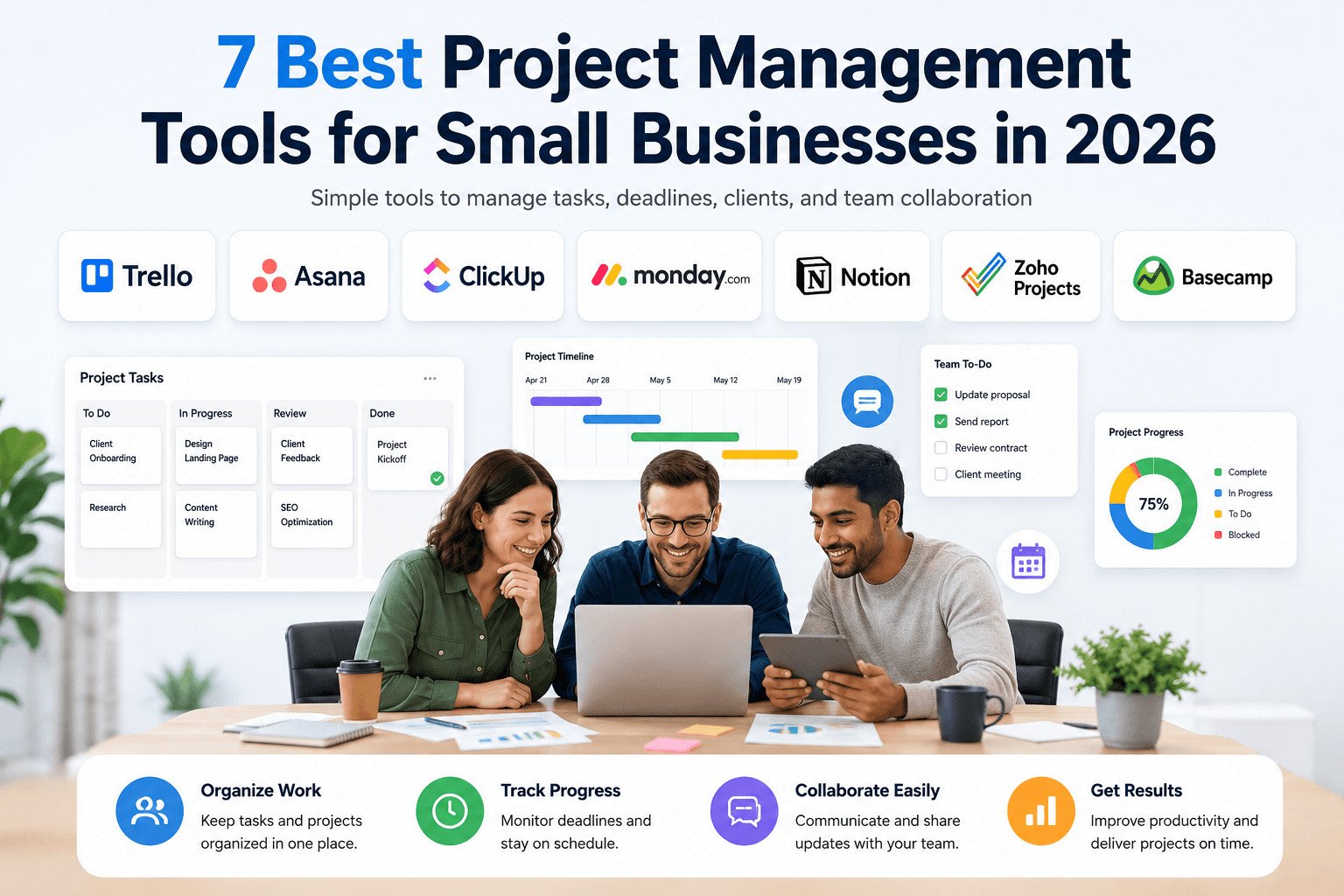
The best project management tools for small business are Trello, Asana, ClickUp, monday.com, Notion, Zoho Projects, and Basecamp.
Trello is best for simple boards. Asana is best for task owners and deadlines. ClickUp is best for teams that want many features in one app. monday.com is best for visual project tracking. Notion is best for notes, docs, and flexible planning. Zoho Projects is best for budget-conscious teams. Basecamp is best for simple team and client communication.
That quick answer is useful if you already know what your team needs. But if you are still choosing, the better place to start is with the problems your business is trying to fix.
What Small Businesses Need From Project Management Software
Before comparing tools, look at how your business works today.
Many small teams choose the tool with the longest feature list. That can cause problems quickly. If the software feels confusing, people stop updating it. The team goes back to WhatsApp messages, email threads, notebooks, and missed deadlines.
A useful project management tool should answer four simple questions:
- What needs to be done?
- Who is responsible?
- When is it due?
- What is the current status?
Those four answers matter more than fancy dashboards, complex reports, or advanced settings.
Ease of use matters. If your team needs days of training before they can add a task, update progress, or check a deadline, the tool is probably too heavy. Choose something your team can use during a normal workday.
Pricing also needs a close look. Some tools look cheap for one person but become expensive when you add your full team, more projects, more storage, or client access. Before choosing a paid plan, calculate the cost for your real team size.
Think about how your team shares work. Some businesses only need basic task tracking. Others need file sharing, comments, client updates, calendars, or recurring tasks. A good tool should help the team find work faster, not create another place where updates disappear.
For example, a small marketing agency may manage five client projects at the same time. One person keeps deadlines in email. Another stores files in Google Drive. Another updates the client through messages. When work is late, nobody knows who owns the task.
With the right tool, each client project can have tasks, owners, deadlines, files, and comments in one place.
Once you know what your team actually needs, the comparison becomes much easier. Instead of asking which tool has the most features, you can ask which one solves your daily problems with the least friction.
Quick Comparison of the Best Project Management Tools for Small Business
Use this table to shortlist the tools before reading the full breakdown. The goal is not to pick one “best” tool for everyone. The goal is to match the tool to your team size, budget, and work style.
Pricing and free-plan limits change often, so check each tool’s pricing page before you choose.
| Tool | Best For | Free Plan Notes | Main Weakness |
|---|---|---|---|
| Trello | Very small teams that like simple boards | Free plan includes unlimited cards and up to 10 boards per Workspace | Can feel limited when projects need timelines, reporting, or many approval steps |
| Asana | Teams that need clear task owners and deadlines | Free Personal plan supports up to 2 users | Teams may need paid plans for timelines, dashboards, automation, or reporting |
| ClickUp | Teams that want tasks, docs, and project tracking in one app | Free Forever plan includes unlimited tasks and 60MB storage | Takes longer to set up than simpler tools |
| monday.com | Visual teams that manage projects with boards | Free plan supports up to 2 seats and up to 3 boards | Costs can rise as the team grows |
| Notion | Freelancers and organized teams that want notes, docs, and tasks together | Free plan is strongest for individuals; 2+ member workspaces have block limits | Can become messy without clear structure |
| Zoho Projects | Budget-conscious teams that need core project features | Free plan includes 3 projects and 5GB storage | May take more time to learn than simpler tools |
| Basecamp | Teams that want simple communication, files, and to-do lists | Free account supports 1 project, 1GB storage, and up to 20 users | Not the best fit for detailed timelines or advanced reporting |
A design agency may need timelines, file comments, and clear task owners. A freelancer may only need a clean place to track client work and deadlines. A local service business may care more about recurring jobs and team updates than reports.
For example, a three-person marketing team may use Trello to track blog posts, social posts, and client requests. But if each person handles several projects with deadlines, approvals, and files, Asana, ClickUp, or monday.com may help the team assign work, track delays, and keep files attached to the right tasks.
The table gives you a fast shortlist. Now let’s look at each tool in more detail, including who it fits best, who should avoid it, and what kind of project you can test first.
7 Best Project Management Tools for Small Business in 2026
The best tool depends on how your business runs. A freelancer, a small agency, a startup, and a local service business will not need the same setup.
1. Trello — Best for Simple Visual Task Boards
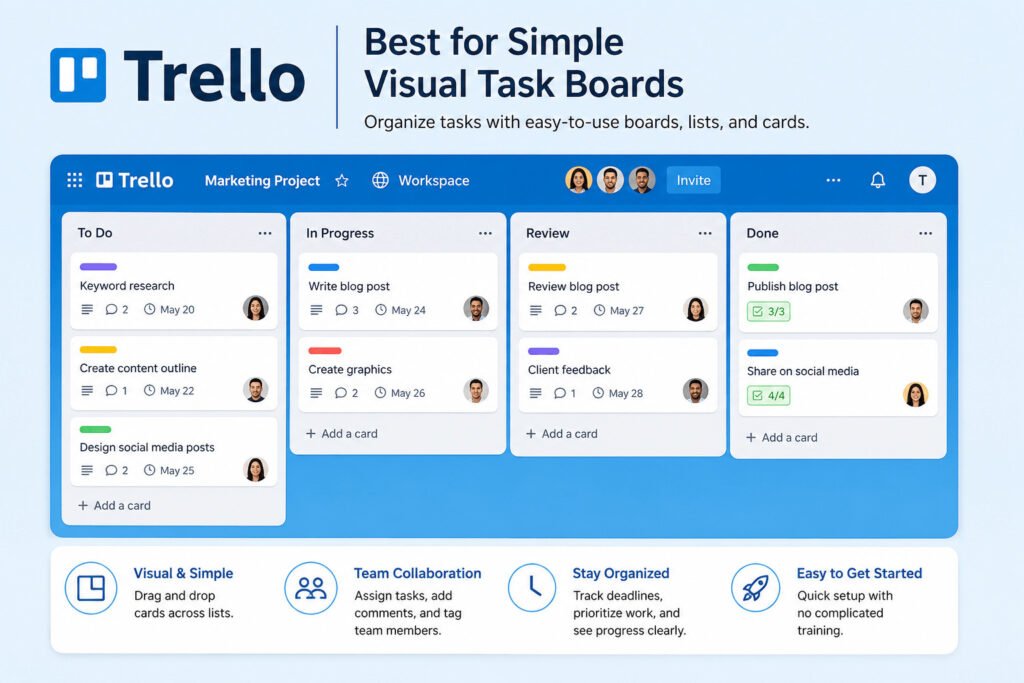
Trello is best for very small teams that want a simple visual board. It uses boards, lists, and cards to organize work. A board works like a wall with columns such as “To Do,” “Doing,” and “Done.” Each task becomes a card that moves across the board.
Best for: Simple task lists, content calendars, small client projects, and weekly team planning.
Avoid if: You need detailed timelines, complex reporting, dependencies, or many approval steps.
Good first project to test: A weekly content calendar or a simple client task board.
Trello is easy to understand, which makes it useful for teams that do not want much setup. The downside is that larger projects can outgrow it when work becomes more complex.
Read more: https://www.atlassian.com/blog/trello/how-to-use-trello-like-a-pro
2. Asana — Best for Task Owners and Deadlines
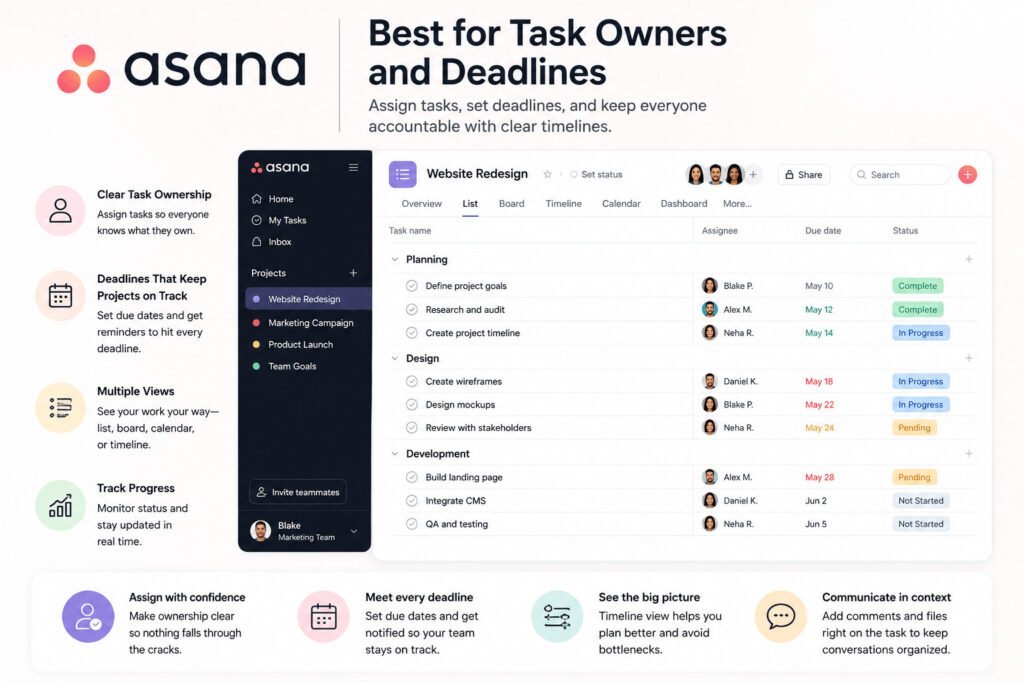
Asana is a strong choice for teams that need clear task ownership. Task ownership means one person is responsible for finishing a task.
Asana lets teams assign tasks, set deadlines, and view work as a list, board, calendar, or timeline. A timeline shows tasks on a schedule, so the team can see what happens first, next, and later.
Best for: Teams that need clear responsibilities, due dates, project stages, and task comments.
Avoid if: You only need a very simple board and do not want extra views or settings.
Good first project to test: A client campaign with tasks for writing, design, review, approval, and delivery.
Asana works well when several people share one project. Very small teams can start with the free Personal plan, but growing teams should check paid plans if they need timeline views, dashboards, automation rules, forms, or advanced reporting.
Read more:https://asana.com/resources/asana-tips-structure-work
3. ClickUp — Best for Teams That Want Many Features in One App
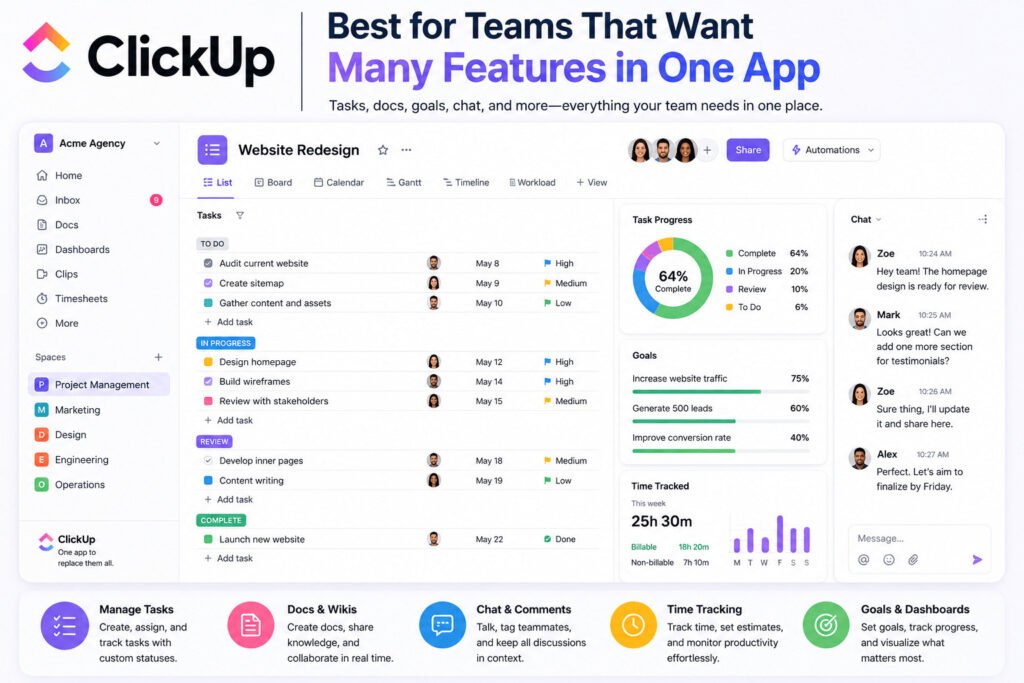
ClickUp fits teams that want one app for tasks, docs, checklists, chat, and project tracking. It can handle different types of work, including content planning, product tasks, client projects, and internal checklists.
Best for: Small teams that want many project features in one place.
Avoid if: Your team wants the simplest possible setup.
Good first project to test: A client project with tasks, files, notes, comments, and deadlines.
The downside is the learning curve. Beginners may see too many buttons, settings, and views before they understand what they actually need. A view is a different way to see the same work, such as a list, board, calendar, or timeline.
ClickUp can be useful, but start with only the features your team needs. Do not build a complicated workspace on day one.
Read more:https://clickup.com/blog/how-to-use-clickup-ai/
4. monday.com — Best for Visual Project Tracking
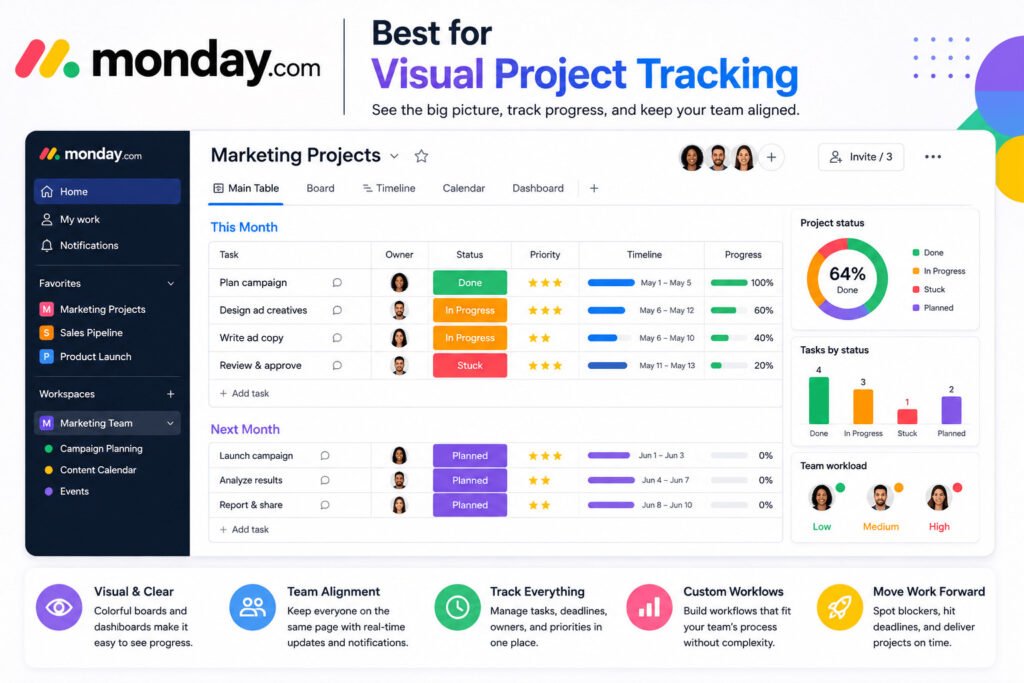
monday.com works well for visual teams that want boards, dashboards, and status updates. A dashboard is one screen that shows important project information, such as progress, overdue tasks, or team workload.
Best for: Teams that like colorful boards, visual tracking, and quick project updates.
Avoid if: You are trying to keep costs very low as your team grows.
Good first project to test: A sales pipeline, client project tracker, or weekly operations board.
monday.com’s free plan is better for testing than for a growing team because it has seat and board limits. It can help managers see work quickly, but setup and cost can increase as the team adds more users and boards.
Read more : http://monday.com/blog/crm-and-sales/affordable-crm-options-for-small-businesses/
5. Notion — Best for Notes, Docs, and Flexible Planning
Notion is best for freelancers and organized small teams that want notes, documents, tasks, and project plans in one flexible workspace. It is useful when you want meeting notes, client details, checklists, and project plans in the same place.
Best for: Freelancers, consultants, creators, and small teams that want docs and tasks together.
Avoid if: Your team needs a ready-made project management system with little setup.
Good first project to test: A client workspace with notes, tasks, meeting summaries, and deadlines.
Notion’s flexibility can also become a problem. If nobody creates clear pages, task rules, and naming habits, the workspace can become hard to follow.
Notion’s free plan is strongest for individuals. Teams should check the plan limits before using it as their main project workspace.
Here is some intro: https://www.notion.com/blog/blog-posts
6. Zoho Projects — Best Budget-Friendly Project Management Tool
Zoho Projects is a good option for budget-conscious teams that still need task management, time tracking, reports, and team collaboration.
Best for: Small businesses that want core project features without choosing a high-cost tool.
Avoid if: Your team wants the simplest and most visual interface.
Good first project to test: A service project with tasks, subtasks, deadlines, files, and time tracking.
Zoho Projects may take more time to learn if your team prefers a very simple, visual tool. Still, it gives small businesses many core project features in one system.
7. Basecamp — Best for Simple Team and Client Communication
Basecamp is best for teams that want one place for client messages, to-do lists, files, schedules, and project updates.
Best for: Teams that need clear communication more than detailed project reporting.
Avoid if: You need advanced timelines, workload planning, or detailed reporting.
Good first project to test: A client project where your team needs to share updates, tasks, files, and decisions in one place.
Basecamp is not the strongest choice for detailed timelines or complex reporting, but it keeps everyday work easy to follow. Its free account is useful for testing one project before moving to a paid plan.
Each tool can work well in the right situation. The problem starts when a small team chooses a tool because it looks impressive, not because it fits how the team actually works.
How t biuld projects in Zoho:https://www.zoho.com/blog/projects/zohoprojectsinfinity.html
The Mistake That Makes Small Teams Stop Using Project Management Tools
Small teams often stop using project management tools because they choose software that is too complicated for the way they work.
A powerful tool can look impressive at first. It may include dashboards, automation, multiple views, reports, forms, goals, templates, and many settings. But if your team only needs to track tasks, deadlines, and owners, too many features can slow people down.
People do not stop using these tools because they hate organized work. They stop because the tool starts to feel like extra work.
Every new system must fit into a busy day. If someone needs five clicks to update one task, they may stop updating it. If the owner has to remind the team every morning to use the software, the tool is not fixing the problem.
This often happens when a business tries to build the perfect setup too early. The team creates too many boards, labels, task stages, rules, and views. Instead of showing what matters, the tool becomes another thing to manage.
Start smaller.
Imagine a cleaning company with six workers. The owner wants to track customer jobs, staff assignments, and weekly follow-ups. On day one, they do not need advanced reports. They need a simple board with four columns: “New Job,” “Assigned,” “In Progress,” and “Completed.”
Each job card can include the customer name, address, date, assigned worker, and notes.
That setup gives the team what they need: everyone can see the job, the owner, and the next step.
Later, the owner can add recurring tasks, file attachments, calendars, or reports. Adding everything from the beginning may only confuse the team.
Use the basics first:
- Task name.
- Owner.
- Deadline.
- Status.
- Notes.
Once your team updates those fields every week, add more structure only when a real problem appears.
That is why choosing by feature list alone is risky. A better approach is to match the tool to the type of business you run and the kind of work your team handles every week.
How to Choose the Right Project Management Tool for Your Business Type
The right tool depends on the work your business handles every week. A tool that fits a freelancer may not fit an agency. A tool that fits a startup may feel too heavy for a local service business.
Freelancers should keep the setup simple. You may only need one place for client tasks, deadlines, notes, and files. Trello or Notion can work well because they are easy to set up and do not force a complex process. The main goal is to avoid missed client requests and late delivery.
Small agencies need more structure. Agencies often manage several clients at the same time, so each task needs one clear owner. Asana, ClickUp, or monday.com can help agencies assign work, set deadlines, add comments, attach files, and check progress.
Startups may need a flexible setup because work changes fast. One week may focus on product updates. The next may focus on marketing, customer feedback, hiring, or investor tasks. ClickUp, Asana, or Notion may fit this kind of work. The risk is adding too many views and categories too soon.
Local service businesses often need something more practical. A cleaning, repair, catering, or home service business may care less about reports and more about who is doing what, when the job is due, and whether the customer has been updated. Trello, Zoho Projects, or Basecamp can work well for daily coordination.
For example, a four-person web design agency may choose Asana or ClickUp because each website project includes design tasks, writing tasks, revisions, files, and client feedback. A solo consultant may choose Trello because they only need to move client work from “To Do” to “Done.”
Before choosing, ask one question: what problem are we fixing first?
- Missed deadlines?
- Unclear owners?
- Lost files?
- Too many client messages?
- Weak team updates?
Choose the tool that solves that problem first.
After you shortlist a tool by business type, the next question is cost. A free plan may be enough at the beginning, but it depends on your team size and how much work you need to manage.
Free vs Paid Project Management Tools: When Should You Upgrade?
A free project management tool can be enough when your team is small and your work is simple. If you only need tasks, owners, deadlines, and progress updates, you may not need to pay right away.
This is useful for freelancers, solo business owners, and very small teams. A free plan lets you test the tool before spending money. It also helps your team build the habit of using one shared place for work.
Free plans usually have limits. The limit may be the number of users, boards, projects, storage, file uploads, automations, reports, or project views.
Automation means the tool performs a simple action for you. For example, it can move a task to another column when the status changes. Reporting means the tool shows progress, delays, or completed work in a summary.
A small business should upgrade from a free plan when limits start slowing work down, such as missing files, unclear task owners, limited project views, weak reporting, or too many manual updates.
Guest access is another reason to upgrade. Guest access lets clients, contractors, or partners view part of a project without seeing everything inside your business. The exact guest rules depend on the tool and plan, so check this before inviting clients.
For example, a small social media agency may start with a free Trello board to plan posts. At first, that may work well. After adding five clients, three team members, approval steps, files, and monthly reports, the free setup may become too limited.
Before upgrading, check the full cost for your real team size. Many tools charge per user, while Basecamp also offers fixed-price packages for teams that want unlimited users.
Test one real project first. Add real tasks, assign real owners, set real deadlines, and ask the team to update progress. If the paid features fix a real problem, upgrading makes sense. If not, stay on the free plan.
The safest decision is not always the cheapest tool or the most advanced plan. It is the tool your team can use consistently without slowing down the work.
Final Recommendation: Choose the Best Project Management Tool for Your Team
The best project management tool for your small business is the one your team can understand, use often, and trust as the main place for work updates.
If your team is very small and needs a simple visual system, Trello is a safe starting point. It works well for basic task tracking, content calendars, and simple client work.
If you need clear task owners and deadlines, Asana is a stronger choice. It helps teams see who is responsible for each task and when work is due.
If your business wants many features in one place, ClickUp may fit, but only if your team is willing to set it up carefully.
For visual workflows and dashboards, monday.com can work well. If you want notes, documents, and tasks together, Notion can be useful, but it needs clear structure from the beginning.
Zoho Projects is worth considering if budget matters and you still need core project features. Basecamp is a good option if your biggest problem is communication, client updates, and keeping project discussions in one place.
Do not start by asking, “Which tool has the most features?”
Ask, “Which tool will my team actually update every day?”
A five-person design team may choose Asana because every website project has tasks, files, deadlines, revisions, and client feedback. A solo consultant may choose Trello because they only need to track client work from “To Do” to “Done.”
Both choices can be right because the work is different.
Before paying for any tool, test it with one real project for one week. Add real tasks, owners, and deadlines. Ask your team to update progress. If people use it without constant reminders, that is a strong sign.
Start simple. Build the setup only when your work demands it. Compare the tools above, shortlist two options, and choose the one that fixes your biggest problem first.
Read intro: https://sagaaro.com/what-are-project-management-tools/
FAQs About Project Management Tools for Small Business
What is the best project management tool for a small business?
The best project management tool for a small business depends on the team’s work. Trello is good for simple boards, Asana for task owners and deadlines, ClickUp for many features in one app, monday.com for visual tracking, Notion for notes and planning, Zoho Projects for budget-conscious teams, and Basecamp for simple communication.
What is the easiest project management tool for beginners?
Trello and Basecamp are two of the easiest options for beginners because they keep work simple. Trello uses boards and cards. Basecamp keeps messages, to-do lists, files, and schedules in one project space.
What is the best free project management tool for small teams?
There is no single best free tool for every small team. Trello is useful for simple boards, Asana works for one or two people, ClickUp gives many features but has storage limits, and Basecamp lets you run one project for free. Always check the latest free-plan limits before choosing.
Is Trello enough for a small business?
Trello can be enough for a small business if the team only needs simple task boards, deadlines, and basic project tracking. It may not be enough if the business needs advanced timelines, detailed reporting, workload planning, or complex approval steps.
Is ClickUp too complicated for small businesses?
ClickUp can feel complicated at first because it has many features. It can still work for small businesses if the team starts with a simple setup and only adds extra views, dashboards, or automation when needed.
Should small businesses use free or paid project management software?
Small businesses should start with a free plan if their work is simple. A paid plan makes more sense when the free plan causes problems, such as limited storage, missing reports, unclear task ownership, restricted project views, or not enough client access.
How do I choose project management software for my team?
Start with the problem you want to fix. If you miss deadlines, choose a tool with clear due dates. If people are unsure who owns tasks, choose a tool with strong task assignments. If client updates are scattered, choose a tool with comments, files, and shared project spaces.