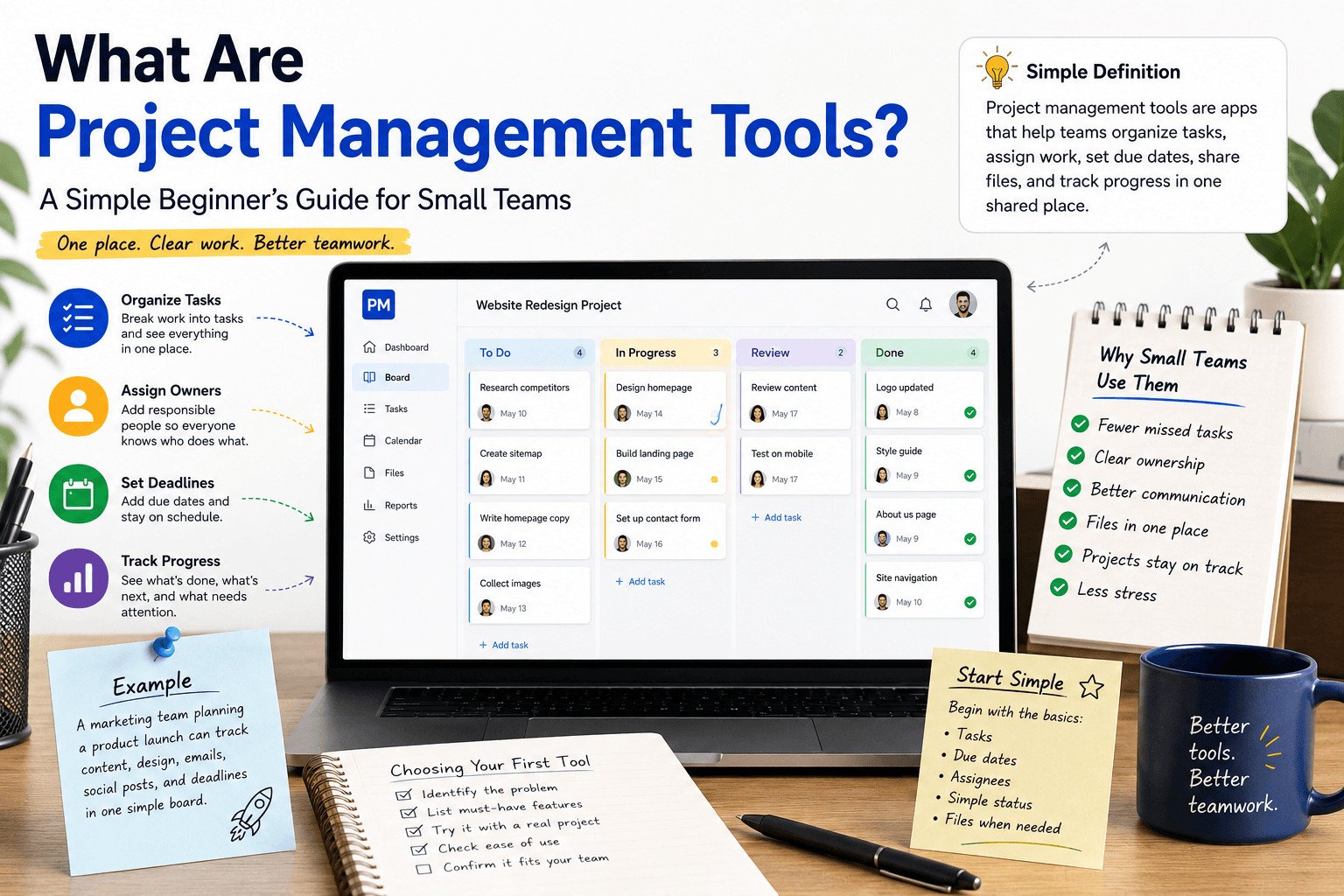
Project management tools sound more complicated than they are. In simple terms, they help a team see the work in one place: what needs to be done, who is responsible, what is due soon, and what is already finished.
For beginners and small teams, the goal is not to build a complex system. The goal is to stop losing tasks in WhatsApp chats, emails, spreadsheets, notebooks, or memory.
Simple definition: Project management tools are apps that help teams organize tasks, assign work, set due dates, share files, and track progress in one shared place.
Before looking at features or comparing software names, it helps to understand the basic idea first.
Table of Contents
What Are Project Management Tools?
A project management tool is software that helps people plan, track, and manage work in one place. It can show tasks, deadlines, files, comments, and progress so the team does not need to search across many apps.
Think of it as a shared workspace for your team’s work.
Instead of asking, “Who is doing this?” or “Is this finished?” the team can open the tool and check.
Imagine a small business building a new website. The owner needs someone to write the homepage text, someone to design the pages, someone to upload images, and someone to test the site before launch.
Without a tool, the work can sit in different places. One update is in WhatsApp. Another file is in email. A deadline is in someone’s notebook. The logo is saved on one person’s laptop.
That setup can slow the team down because updates are harder to find. People ask the same questions again. Tasks get missed. The owner has no clear view of what is done.
With a project management tool, the team can list tasks like:
- “Write homepage text”
- “Design contact page”
- “Upload product images”
- “Test website on mobile”
- “Publish website”
Each task can have a responsible person and a due date. The team can also mark tasks as “not started,” “in progress,” or “done.”
The tool does not do the work for you. It gives the team one place to check tasks, update progress, and see what needs attention next.
Project management tools are not only for large companies. Small teams, freelancers, agencies, content teams, and business owners can use them when work becomes hard to track.
Once you understand what these tools are, the next question is more important: what problem are they actually solving?
What Do Project Management Tools Help You Do?
When tasks, deadlines, files, and updates start getting lost, a project management tool gives the team one clear place to check the work.
In many small teams, everyone is busy, but nobody has the full picture. One task is discussed in a chat. A deadline is mentioned once in a meeting. A file is sent by email. A client request is saved in someone’s head.
That can lead to missed deadlines, repeated work, and unclear responsibility.
A project management tool helps the team answer four practical questions:
- What needs to be done?
- Who is responsible?
- When is it due?
- What is the current status?
Status means the current stage of a task. For example, a task might be “not started,” “in progress,” “waiting,” or “done.”
Imagine a small marketing team preparing a product launch. They need to write social media posts, design images, update the website, send an email newsletter, and answer customer questions.
If the team manages everything through WhatsApp and email, details can disappear quickly. The designer may not know when the images are needed. The writer may still be waiting for product details. The owner may ask, “Is this finished?” several times because there is no clear place to check.
With a project management tool, each piece of work becomes a task. Each task can have a due date, a responsible person, and a status.
This helps the team notice problems earlier. If the email newsletter is still not written two days before launch, the team can see it and act before the launch is affected.
The tool does not replace team communication. People still need to talk, make decisions, and solve problems. The tool simply gives those conversations a clearer place to happen.
For a small team, this can reduce repeated questions, make responsibilities clearer, and make deadlines easier to track.
That sounds useful, but it also leads to a common mistake: choosing a tool before understanding the real problem inside the team.
Read more about the They’re Useful For on Coursera: https://www.coursera.org/articles/project-management-tools
Before You Choose a Project Management Tool, Know Your Problem
Many beginners choose a tool before they know what problem they want to fix.
They see names like Trello, Asana, ClickUp, Monday.com, or Notion and start comparing features. That can make the decision harder. Every tool looks useful when the team has not defined the problem.
Start with one question:
What is messy in our work right now?
Maybe tasks are forgotten. Maybe deadlines are unclear. Maybe files are hard to find. Maybe team members keep waiting for updates. Maybe nobody knows who owns each task.
Different problems need different setups.
For example, a small content team may only need to manage blog posts. Their work is simple: ideas, writing, editing, images, approval, and publishing.
They may not need advanced reports or detailed planning features. A basic board with columns like “Ideas,” “Writing,” “Editing,” “Ready,” and “Published” may be enough.
A board, often called a Kanban-style board, is a visual layout that organizes tasks by stage. As work moves forward, the team moves each task from one column to the next.
A client service team may need something different. They may need deadlines, files, client notes, task owners, and approval steps because more people are involved.
Choosing only because a tool is popular is risky. A powerful tool can still be wrong for your team if people do not understand it or stop using it after a few days.
A better approach is simple: name the daily work problem first. Then choose the tool that helps with that problem with the least confusion.
For beginners, the better tool is usually the one the team can open every day, understand quickly, and use without a long setup.
After you know the problem, the features start to make more sense. You do not need to learn every button. You only need to understand the basics.
See other article related to this title: https://www.forbes.com/councils/theyec/2023/01/20/nine-factors-to-consider-when-choosing-the-perfect-project-management-tool/
Common Project Management Tool Features Explained Simply
Many project management tools include basic features such as tasks, due dates, assigned people, boards, comments, and file attachments. The names may change between tools, but the purpose is usually the same: help the team manage work in one place.
A task is one piece of work that needs to be done. Examples include “write product description,” “call the client,” “send invoice,” or “upload website images.”
A due date shows when a task should be finished. It helps the team see what is urgent and what can wait.
An assignee is the person assigned to do the task. You may also hear people call this person the task owner or responsible person. This matters because unclear responsibility can cause delays. When a name is attached to a task, everyone knows who should handle it.
A board shows tasks by stage. A small event team might use columns like “To Do,” “In Progress,” “Waiting,” and “Done.” Each task moves across the board as the work changes.
Comments keep task discussions in one place. Instead of searching through chat messages, the team can open the task and read the latest update.
File attachments keep documents, images, proposals, or invoices connected to the task. This helps the team avoid searching through folders and email threads.
Common project management tool features include:
- Tasks
- Due dates
- Assignees
- Task status
- Comments
- File attachments
- Boards or calendar views
Beginners do not need to use every feature. Start with the basics: tasks, due dates, assigned people, simple status tracking, and files when needed.
For teams managing simple projects, those basics are often enough to start.
The point is not to add more work. The point is to help people see what needs to happen, who is doing it, and what still needs attention.
Still, having useful features does not mean every small team needs a tool right away. The timing matters.
When Does a Small Team Need a Project Management Tool?
A small team does not need a project management tool just because other businesses use one.
If the work is simple and easy to track, a notebook, spreadsheet, or shared document may be enough.
The need usually appears when work starts slipping.
A task gets forgotten. A deadline passes. Two people do the same job. A client asks for an update, and nobody knows the answer. A file is missing because it was sent in an old email thread.
Those are signs that the team may need a better way to track work.
Imagine a small digital agency managing three client websites at the same time. Each website needs content, design, images, client feedback, edits, and final approval.
At first, the team may manage everything through chat. But as tasks grow, problems appear. One client’s logo is missing. Another website is waiting for homepage text. The designer finishes a page, but nobody tells the developer. The owner keeps asking for updates every day.
A project management tool can give each client project its own task list or board. Each task can show the responsible person, deadline, files, and status.
This can save time because the team does not need to ask the same questions again and again.
A small team may need project management software when it handles client work, content planning, product launches, sales follow-ups, events, or any project with several steps and people involved.
Do not add a tool only because other teams use one. Add one when missed tasks, scattered updates, or unclear responsibility are costing time.
When those problems start showing up often, choosing the right first tool becomes easier because you know what to look for.
How to Choose Your First Project Management Tool
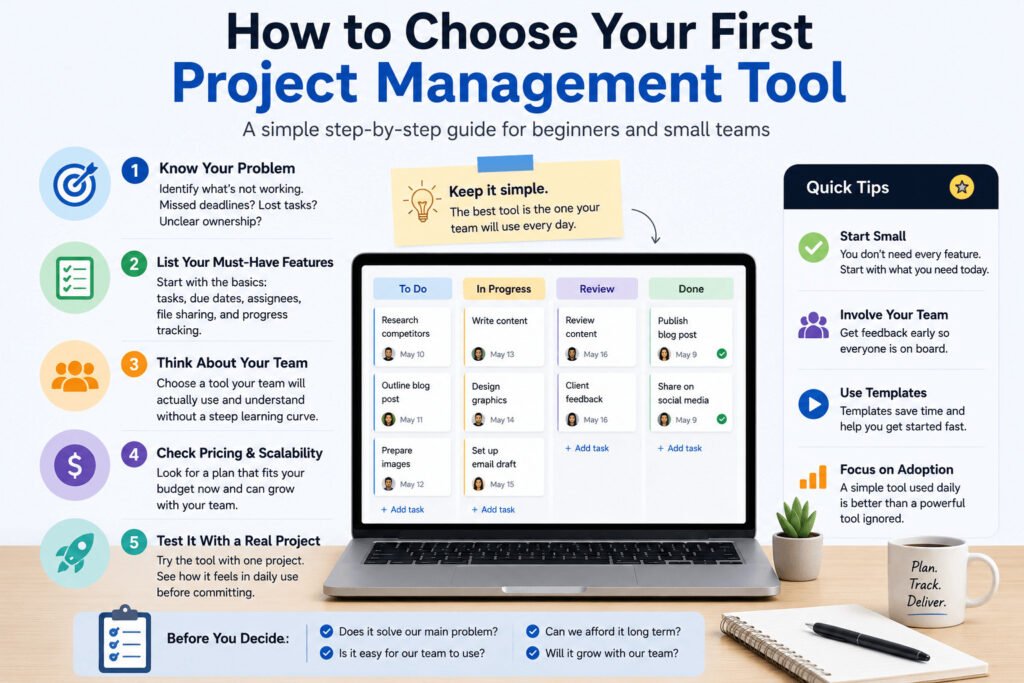
Choosing your first project management tool should start with how your team works, not with the longest feature list.
First, name the main problem.
Are tasks being forgotten? Are deadlines unclear? Are files hard to find? Are people waiting for updates? Are client requests getting lost?
Your answer should guide the tool you choose.
If your team only needs task tracking, choose a tool with a clear task list or board. If your team works around dates, content, or events, a calendar view may help. If you manage client work, look for task owners, comments, file attachments, and deadline reminders.
Do not choose a tool only because it is popular.
A tool can have many features and still fail your team if it takes too long to set up or feels confusing. For beginners, simple daily use matters more than advanced options.
Imagine a small team publishing weekly blog posts. They need to track article ideas, writing, editing, images, and publishing.
A simple board with columns like “Ideas,” “Writing,” “Editing,” “Ready to Publish,” and “Published” may be enough. The team can see where each article stands and who owns the next step.
Before paying for a tool, test it with one real project. Add a few tasks. Assign them to team members. Set due dates. Use it for one week.
That test can show whether the tool feels clear enough for daily use or adds more confusion.
Cost matters too. Many project management tools offer free or low-cost plans, but limits can change. Check the pricing page before choosing one.
Your first tool should be easy to understand, quick to check, and simple enough for the whole team to use every day.
The best choice usually becomes clear after you stop comparing every possible feature and focus on what your team will actually use.
Final Advice: Start Simple Before Comparing Tools
Project management tools make more sense when you start with the work, not the software.
Ask what your team needs to control better:
- Missed deadlines
- Unclear responsibilities
- Scattered files
- Too many messages
- Forgotten tasks
- Slow approvals
Once you know the real problem, choosing a tool becomes easier.
For most beginners and small teams, the first setup should stay simple. You need a clear place to list tasks, assign each task to the right person, add due dates, attach important files, and check progress.
Imagine a small online store preparing for a holiday sale. The team needs to update product pages, create discount banners, write email messages, post on social media, and check inventory.
Without a clear system, work gets messy. The designer may finish the banner, but the website person may not know it is ready. The owner may ask for the email draft, but nobody knows who was writing it. A product page may stay unchanged because everyone thought someone else handled it.
A simple project board can make that easier to manage. The team creates tasks, assigns owners, adds due dates, and moves each task from “To Do” to “In Progress” to “Done.”
The tool should help people check tasks, update progress, meet deadlines, and know what to do next. It should not create more confusion.
A project management tool only works if the team uses it consistently. If tasks are not updated, the tool becomes another place where information gets lost.
Start with the features your team will use every day. Later, when your projects grow, you can explore more advanced options.
If you are new to project management tools, do not rush into the most popular or expensive choice. First, understand your work. Then choose a tool that fits your team’s size, habits, and daily problems.
Next, compare beginner-friendly project management tools and choose one that matches the way your team already works.
Read more: https://sagaaro.com/7-best-project-management-tools/
FAQs About Project Management Tools
What are project management tools used for?
Project management tools are used to organize tasks, assign work, set deadlines, share files, track progress, and keep team updates in one place. They help teams avoid missed tasks, unclear responsibilities, and scattered communication.
Are project management tools only for big companies?
No. Small teams, freelancers, agencies, startups, and business owners can also use project management tools. They become useful when tasks, deadlines, files, or client updates become hard to manage manually.
What is the difference between project management tools and task management tools?
Task management tools mainly help you manage individual tasks. Project management tools usually help manage the bigger picture, including tasks, deadlines, people, files, comments, project stages, and progress.
What is a Kanban board?
A Kanban board is a visual board that organizes tasks into columns. Common columns include “To Do,” “In Progress,” and “Done.” Teams move tasks from one column to another as the work moves forward.
What is the easiest project management tool for beginners?
The easiest tool is usually the one your team can understand quickly and use every day. For beginners, look for a simple task list, clear board view, due dates, assignees, comments, and file sharing.