
Firewall protection for beginners does not have to be complicated.
A firewall checks network traffic and blocks connections that do not follow its rules. It can stop unknown devices, online systems, or apps from connecting to your computer or network without permission.
This guide explains how firewalls work, what incoming and outgoing connections mean, why apps sometimes get blocked, and how to check your firewall settings safely.
The examples mainly cover Windows computers, Macs, and home or small-office routers. Phones and tablets handle network security differently and may not offer the same firewall controls.
Table of Contents
What Is Firewall Protection and What Does It Do?
A firewall is a security tool that controls network traffic entering or leaving a device or network. It allows approved connections and blocks unwanted or unexpected traffic.
Think of it as a checkpoint between your device and the network.
Whenever you open a website, send an email, join a video call, or upload a file, your device creates a network connection. The firewall checks details about that connection before allowing or blocking it.
Depending on the system, a firewall rule may consider:
- The app or service using the connection
- The network address involved
- The connection type
- The port being used
- Whether the network is trusted or public
A firewall focuses on network activity.
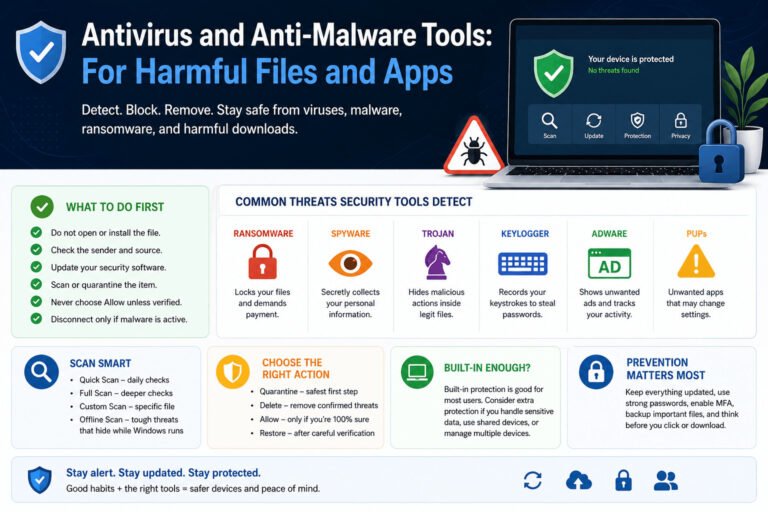
It does not replace antivirus software, system updates, strong passwords, two-factor authentication, or careful browsing.
Read more: https://us.norton.com/blog/privacy/firewall
What can a firewall protect against?
A firewall can help block:
- Unexpected incoming connections
- Unauthorized attempts to reach a device
- Apps or services that do not match approved rules
- Unwanted traffic entering a home or office network
- Some forms of automated network scanning
However, it cannot stop every threat.
A firewall may not prevent someone from opening a harmful attachment, entering a password on a fake login page, or installing unsafe software.
Its role is specific: control network traffic. To understand how it makes those decisions, it helps to know where a connection begins.
How Do Incoming and Outgoing Connections Work?
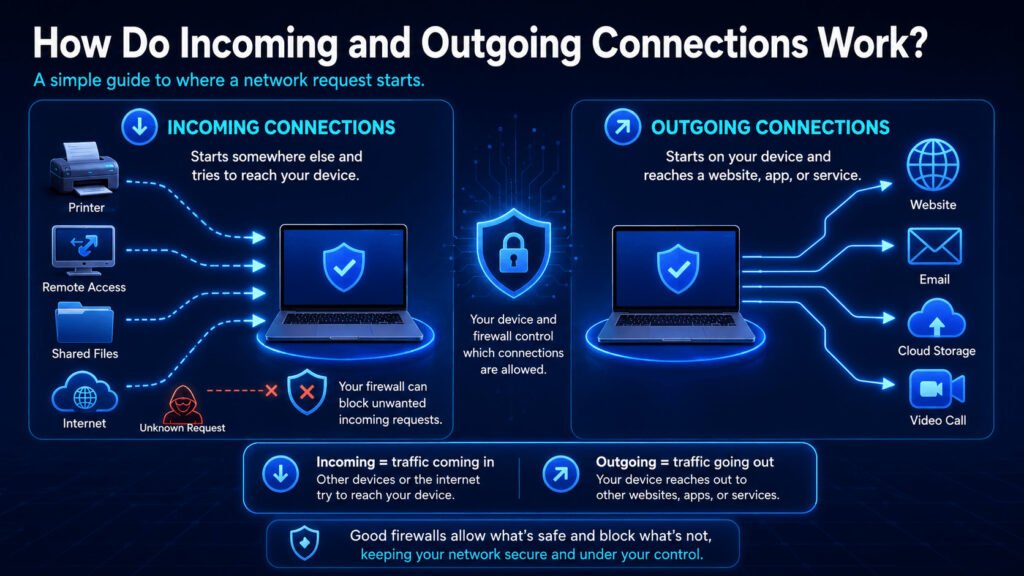
The difference between incoming and outgoing connections depends on where the request starts.
| Connection type | Where it starts | Simple example |
|---|---|---|
| Incoming connection | Another device or online system | A scanner sends a file to your laptop |
| Outgoing connection | Your device | Your browser opens a website |
Outgoing connections
An outgoing connection begins on your device.
Common examples include:
- Opening a website
- Sending an email
- Uploading a document
- Joining an online meeting
- Connecting an app to cloud storage
- Syncing accounting or business software
Windows normally allows outgoing traffic unless an administrator or security tool creates a rule that blocks it.
The standard macOS firewall mainly controls incoming connections. It does not provide the same outgoing app controls found in some advanced security tools.
Incoming connections
An incoming connection begins somewhere else and tries to reach your device.
It may come from:
- A shared printer or scanner
- Another computer on your local network
- A multiplayer game
- A remote desktop service
- A file-sharing app
- An unknown system on the internet
Built-in firewalls commonly block incoming traffic unless an approved app or rule allows it.
Imagine a small office with a shared scanner.
An employee’s laptop may need to accept a connection from the scanner before it can receive documents. That request is expected because it comes from a known device on the office network.
An unknown online system trying to reach the same laptop is different. The firewall can reject the request because no approved service expects it.
Those connection rules are often already active on your computer and router, even if you have never opened the firewall settings.
Do Windows, Macs, and Routers Already Have Firewalls?
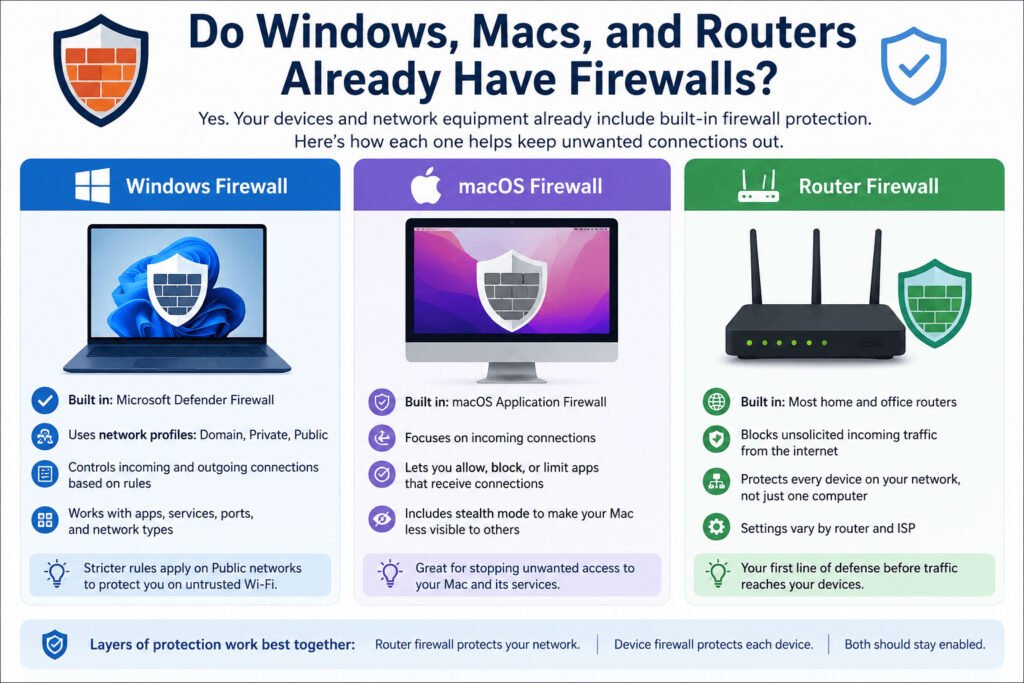
Windows and macOS include built-in firewalls. Many home and office routers also filter incoming traffic.
You may already have several layers of firewall protection without installing extra software.
Windows firewall protection
Windows includes Microsoft Defender Firewall.
It uses three network profiles:
- Domain
- Private
- Public
A private network usually means trusted home or office Wi-Fi.
A public network includes cafés, airports, hotels, libraries, and other shared places. Windows applies stricter settings on public networks because nearby devices may be unknown.
Microsoft Defender Firewall can use rules based on apps, services, ports, network addresses, and network profiles.
macOS firewall protection
macOS also includes a built-in firewall.
Its main role is to control which apps and services may receive incoming connections.
Mac users can:
- Allow specific apps
- Block specific apps
- Block most incoming connections
- Use stealth mode
- Review which apps can accept incoming traffic
Mac firewall settings do not work exactly like Windows network profiles.
Instructions written for Windows may not match the menus or options on a Mac.
Router firewall protection
A router connects your home or office network to the internet.
Many routers reject unsolicited incoming traffic before it reaches connected devices. They may use firewall rules, network address translation, or both.
The router protects the wider network. The firewall on each computer protects that specific device.
Consider a small design company with five laptops.
The router may block unexpected traffic coming from the internet. Each laptop then applies its own firewall rules to apps, local devices, and incoming requests.
When an employee leaves the office and works from a café, the office router no longer protects that laptop. The firewall on the device continues to work.
Before paying for another firewall product, check the protection already built into your computer and router.
Built-in protection usually runs quietly. You are more likely to notice it when an app suddenly loses access or asks for permission.
Why Did My Firewall Block an App?
An app may still open even when the firewall blocks it.
The firewall may only stop one of the app’s network connections.
For example:
- A video app opens but cannot join a meeting
- A file-sharing app opens but cannot upload files
- A remote-support tool starts but cannot receive outside connections
- A scanner appears on the network but cannot send documents
- A game opens but cannot connect to other players
A firewall block does not automatically mean the app is dangerous.
The app may be:
- Newly installed
- Recently updated
- Using a network feature for the first time
- Missing an approved firewall rule
- Trying to receive an incoming connection
Imagine a student installing a multiplayer game on a Windows laptop.
Windows asks whether the game should communicate on private networks, public networks, or both.
Allowing it on trusted home Wi-Fi may be reasonable if the game needs local or incoming connections. Allowing it on every public network may not be necessary.
Before clicking “Allow,” check:
- Does the app name match the program you installed?
- Is the publisher correct?
- Did you download it from the official provider?
- Does the request match what you are trying to do?
- Does the app really need public-network access?
On a Mac, the message may ask whether the app should accept incoming connections.
Block the request when the app name looks unfamiliar, the publisher is unclear, or the warning appears without an obvious reason.
Then investigate before changing the rule.
Give the app only the access it needs. That same cautious approach also helps you avoid the most common firewall mistakes.
Common Firewall Mistakes Beginners Should Avoid
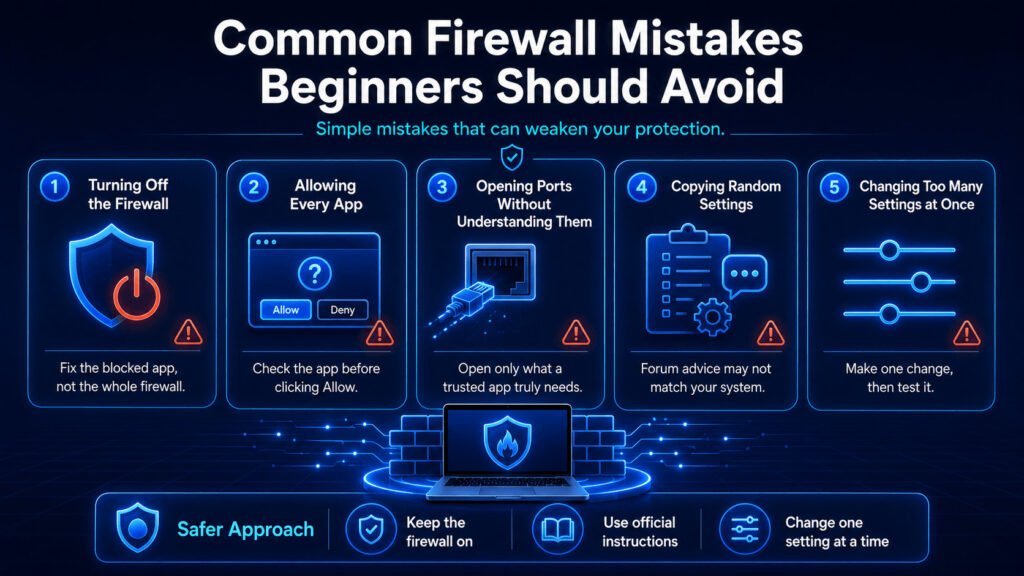
Firewall problems often get worse when users make broad changes too quickly.
Turning off the entire firewall
Disabling the firewall may make one app work, but it also removes protection from other network traffic.
A safer approach is to identify the blocked app or service and create a specific rule for it.
Do not disable the whole firewall because one program cannot connect.
Allowing every app
Some users click “Allow” on every warning because they want the message to disappear.
That can give unknown apps permission to receive network traffic.
Read the alert first. Check the app name, publisher, and source before granting access.
Opening ports without understanding them
A network port is a numbered identifier that directs TCP or UDP traffic to a particular app or service.
Three actions are often confused:
- Allowing an app through a computer firewall
- Creating an inbound port rule
- Forwarding a port through a router
They are related, but they are not the same.
Allowing a trusted app is often safer than leaving a port open for all traffic.
Router port forwarding can expose a service to internet connections. Use it only when the software provider clearly requires it.
Copying random firewall settings
Advice from forums may apply to:
- Another operating system
- An older app version
- A different router
- A business network with different rules
- A problem unrelated to the firewall
Check the software provider’s official instructions before changing advanced settings.
Changing too many settings at once
Make one change, then test the result.
Keep a note of what you changed so you can reverse it if necessary.
Small adjustments are easier to troubleshoot and less likely to create new security gaps.
Avoiding these mistakes is useful, but prevention is even simpler when you check a few basic settings before a problem appears.
How to Check Your Firewall Protection Safely
These five checks can improve firewall protection for beginners without requiring advanced technical skills.
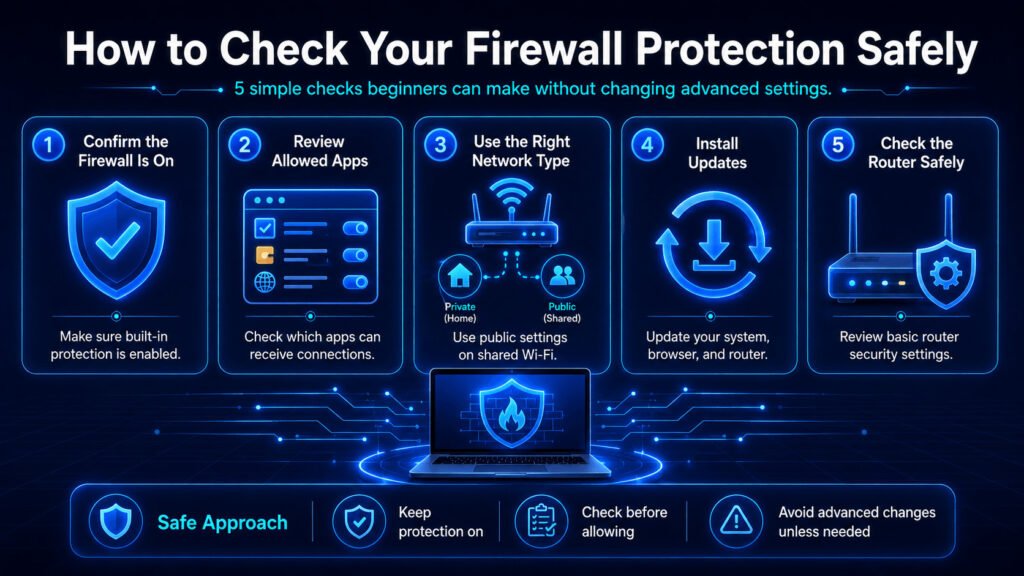
1. Confirm the firewall is enabled
On Windows, open Windows Security and check Firewall & network protection.
On macOS, open System Settings, select Network, and review the firewall settings.
Keep the built-in firewall active unless a qualified technician gives you a clear reason to disable it.
2. Review allowed apps and services
Check which apps can receive incoming connections.
Look for software you recognize and still use.
Remove old or unwanted exceptions after confirming what they belong to. Avoid deleting unfamiliar system rules until you understand them.
3. Use the correct Windows network profile
Mark trusted home or office Wi-Fi as private.
Use the public profile for:
- Cafés
- Airports
- Hotels
- Libraries
- Shared workspaces
- Other open or unfamiliar networks
Public mode limits more incoming traffic and reduces local sharing.
Mac users should review which apps may accept incoming connections because macOS does not use the same Windows-style network profiles.
4. Install system and router updates
Update:
- The operating system
- The browser
- Business apps
- Security software
- Router firmware
Updates fix known weaknesses that a firewall cannot repair by itself.
Some internet providers update routers automatically. Others require users to install firmware through a mobile app or router dashboard.
5. Check the router safely
Review the router through the provider’s app or administration page.
Confirm that:
- The administrator password is not still the default
- Remote administration is disabled unless needed
- Firmware is current
- Firewall or incoming-traffic protection has not been disabled
- Port-forwarding rules are still necessary
Router controls vary by model.
Some devices show a clear firewall setting. Others manage the same protection automatically.
Do not change advanced settings unless you understand what the option controls.
These checks cover the firewall itself. The next question is whether a firewall can protect the rest of your online activity on its own.
Is a Firewall Enough to Keep You Safe Online?
No. A firewall is only one part of online security.
It controls network traffic, but it cannot protect you from every harmful file, phishing message, stolen password, or outdated app.
Combine firewall protection with a few basic safeguards.
Use antivirus or anti-malware software
Antivirus tools check files, downloads, and running programs for harmful activity.
Windows includes built-in malware protection, and other systems may offer their own security tools.
Keep software updated
Updates fix known security weaknesses.
Install updates for the operating system, browser, apps, security software, and router.
Use unique passwords
Do not reuse the same password across email, banking, cloud storage, and business accounts.
A password manager can create and store strong passwords for you.
Turn on two-factor authentication
Two-factor authentication adds another step before an account can be opened.
Authentication apps provide better protection than passwords alone, but fake login pages can sometimes steal verification codes.
Use passkeys or physical security keys when an important service supports them.
Keep reliable backups
Store important files in versioned cloud storage or on an offline drive.
A normal synced folder may copy ransomware damage or accidental deletion across connected devices.
Test your backups occasionally to confirm that important files can be restored.
A practical security setup includes:
- An active firewall
- Antivirus or anti-malware protection
- Current software
- Unique passwords
- Two-factor authentication or passkeys
- Versioned or offline backups
These layers work together, but beginners often still have a few practical questions about what their firewall can and cannot do.
Related article: https://sagaaro.com/10-types-of-security-tools/
Frequently Asked Questions About Firewall Protection
What does a firewall protect you from?
A firewall helps block unauthorized or unexpected network connections. It can stop outside systems from reaching apps or services that do not have an approved rule.
It does not protect against every harmful file, phishing message, weak password, or unsafe download.
Do I need a firewall if I already have antivirus?
Yes. Firewalls and antivirus tools perform different jobs.
A firewall controls network traffic. Antivirus software checks files, downloads, and running programs for malware.
Is the built-in Windows firewall enough?
Microsoft Defender Firewall provides useful connection filtering for most everyday users when it remains enabled and correctly configured.
It should still be combined with software updates, malware protection, secure passwords, and careful browsing.
Does macOS include a firewall?
Yes. macOS includes a built-in firewall that mainly controls incoming connections to apps and services.
It does not use the same private and public network profiles found in Windows.
Does my router have a firewall?
Many home and small-office routers reject unsolicited incoming traffic.
The available controls vary by router and internet provider. Check the provider’s app, router manual, or support service if you cannot find a firewall option.
Should my firewall always be turned on?
In most cases, yes.
When a firewall blocks a trusted app, create a specific exception or rule instead of disabling the entire firewall.
What happens when a firewall blocks an app?
The app may still open, but features that depend on network access may stop working.
This can affect syncing, remote access, online meetings, file sharing, games, or shared printers and scanners.
Is it safe to allow an app through the firewall?
It may be safe when you recognize the app, trust the publisher, downloaded it from an official source, and understand why it needs access.
Avoid granting public-network access unless the app clearly requires it.
With those questions answered, the final step is to confirm that the most important settings are in place.
Final Firewall Protection Checklist
Before leaving your firewall settings, check that:
- The firewall is enabled.
- Trusted apps have only the access they need.
- Unknown apps are not automatically allowed.
- Windows uses the correct network profile.
- Router firmware is current.
- Unused port-forwarding rules are removed.
- Antivirus, updates, passwords, and backups are also in place.
Firewall protection for beginners starts with a simple rule: keep the firewall active, make small changes, and verify an app before allowing it through.