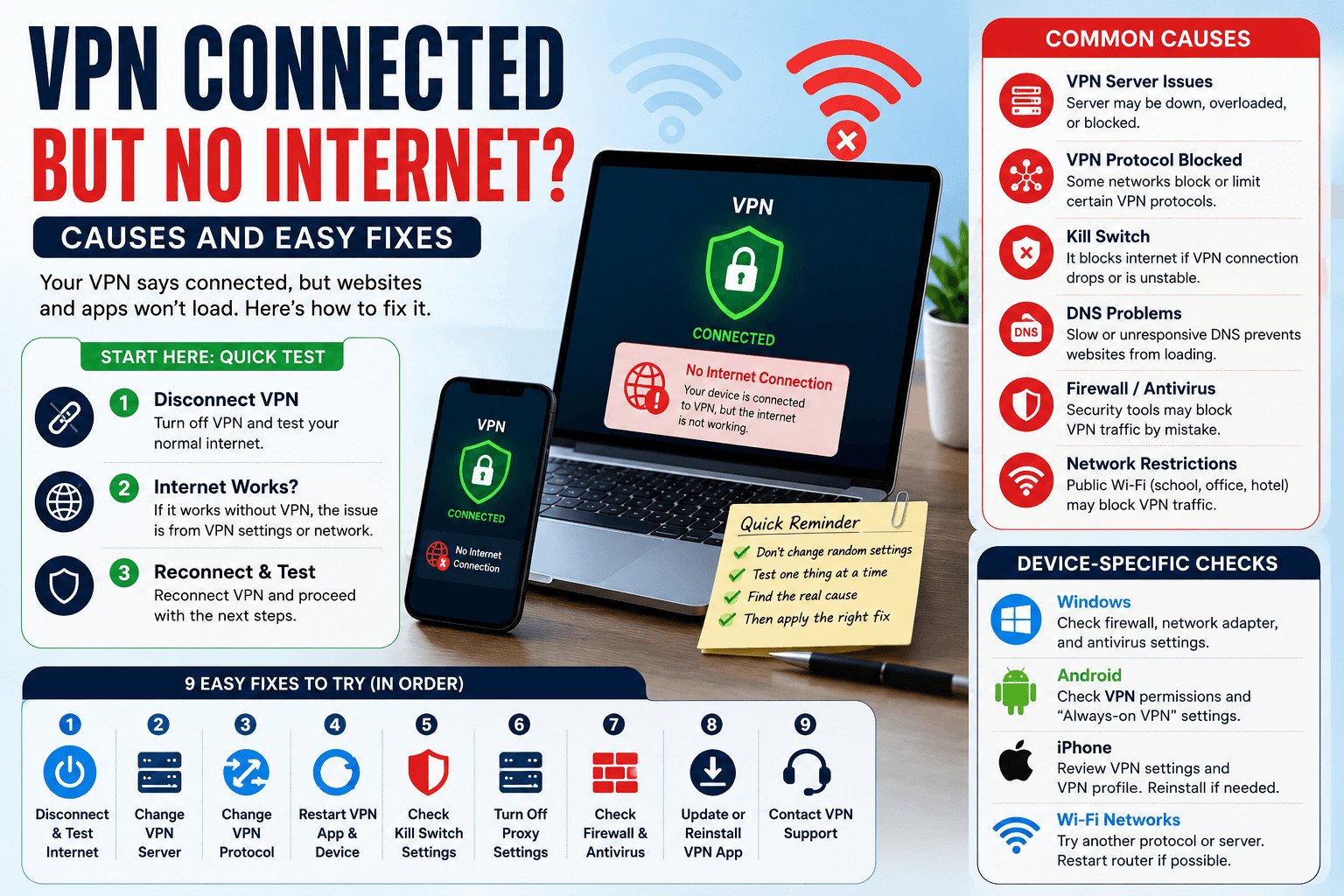
Your VPN says it is connected, but websites and apps will not load. Your Wi-Fi may still show as connected, but internet traffic is not passing through properly.
If your VPN is connected but no internet works, do not start changing random settings. First, find where the connection breaks. Then fix that part.
Table of Contents
Quick Answer: How to Fix VPN Connected But No Internet
If your VPN is connected but no internet works, start by disconnecting the VPN and testing your normal internet. If the internet works without the VPN, reconnect and change the VPN server. If that does not help, change the VPN protocol, restart the VPN app, check the kill switch, turn off proxy settings, and make sure your firewall or antivirus is not blocking the VPN app.
Try these fixes in this order:
- Disconnect the VPN and test your normal internet.
- Reconnect the VPN and change VPN server.
- Change VPN protocol.
- Restart the VPN app and your device.
- Check kill switch settings.
- Turn off proxy settings if they are enabled.
- Check firewall or antivirus permissions.
- Update or reinstall the VPN app.
- Contact VPN support if the problem continues.
| Problem | Most Likely Cause | First Fix |
|---|---|---|
| VPN connected but websites do not load | Bad server or DNS issue | Change VPN server |
| Internet stops only after VPN connects | Kill switch or protocol issue | Change protocol |
| VPN works on mobile data but not Wi-Fi | Wi-Fi may be blocking VPN traffic | Try another protocol |
| Only one browser fails | Browser, extension, or proxy setting | Test another browser |
| VPN fails on every server | App, device, or network issue | Update or reinstall the VPN app |
That list gives you the fast version. But the first step is the one most people skip, and it can save you from fixing the wrong problem.
VPN Connected But No Internet? Start With This Quick Test
Before you blame the VPN provider, check whether your normal internet works.
“VPN connected but no internet” does not always mean the VPN is broken. The real issue could be your Wi-Fi, mobile data, router, browser, firewall, or device settings.
Start by disconnecting the VPN completely. Open a normal website like Google, YouTube, or your email. Then test one app that needs internet, such as WhatsApp, Gmail, Slack, or your banking app.
If nothing works when the VPN is off, the VPN is probably not the main cause. Your internet connection may be down. Check your Wi-Fi, restart your router, switch to mobile data, or contact your internet provider.
If the internet works when the VPN is off but stops after you connect the VPN, focus on the VPN app, server, or settings.
Think of it this way: your device connects to the internet first. Then the VPN sends your traffic through an encrypted tunnel between your device and the VPN server. If the normal internet is already down, the VPN cannot fix it. If normal internet works but fails after the VPN connects, the VPN connection needs attention.
For example, you are working from home and need to join a client call. The VPN says “connected,” but Zoom will not open and your browser keeps loading. Disconnect the VPN and test Gmail or YouTube. If they open, your Wi-Fi is working. The likely cause is the VPN server, VPN protocol, kill switch, or another VPN setting.
This quick test matters because a VPN problem can stop emails, meetings, dashboards, payment tools, and customer replies.
Once you know the internet works without the VPN, the question becomes more specific: what is stopping traffic after the VPN connects?
Related article form NordVPN: https://nordvpn.com/blog/no-internet-access-but-connected/?srsltid=AfmBOoo1JNMMkvy9GFfZcNuQG_Esq-dy9ItrBx24XBPa1qzEAoo3JiEM
Why Your VPN Says Connected but Websites Will Not Load
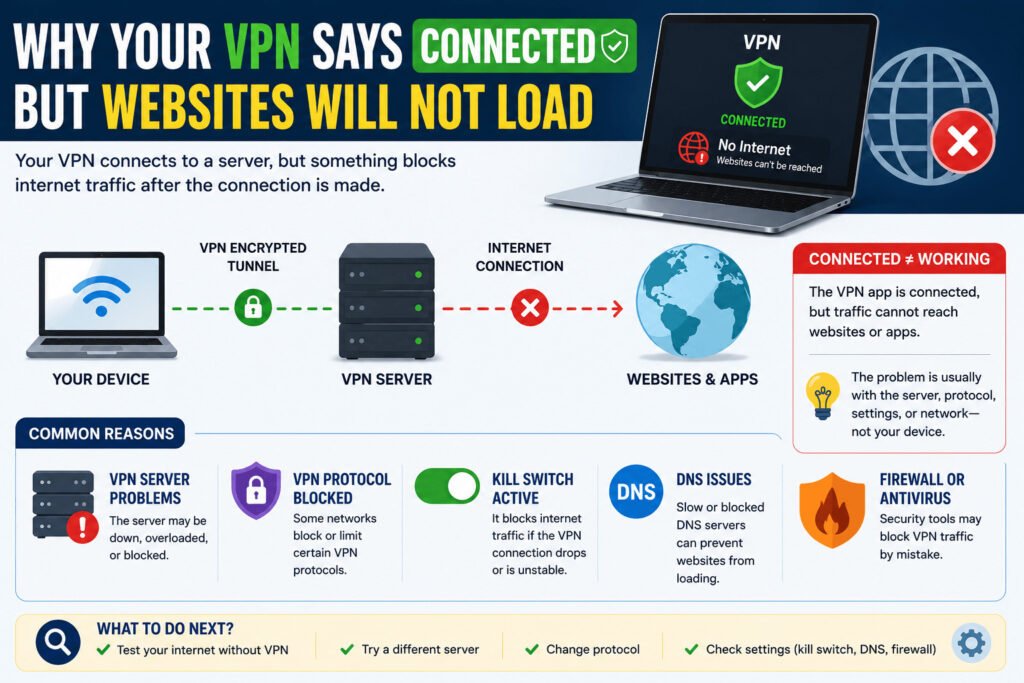
A VPN can show “connected” while websites and apps still fail to load. This usually means the app created a VPN connection, but something is stopping traffic after that connection starts.
One common cause is a VPN server that is overloaded, blocked, or temporarily unavailable. A VPN server is the server your internet traffic passes through before reaching websites and apps. If that server has a problem, your VPN may connect, but pages may still fail to load.
A VPN protocol can also cause trouble. A protocol is the connection method your VPN uses. You do not need to understand the technical details. Think of it as the route your VPN uses to move data. Some networks may block or limit certain VPN protocols, especially school, office, hotel, airport, or café Wi-Fi.
The kill switch is another possible cause. A VPN kill switch blocks internet traffic when the VPN connection drops. It helps protect your real IP address, but it can also make it look like the VPN is connected with no internet if the connection is unstable.
DNS problems can also stop websites from opening. DNS works like a contact list for websites. When you type a website name, DNS helps your device find the correct server. If the DNS used by your VPN is slow, blocked, or not responding, your browser may not know where to go.
Firewall or antivirus software can also block VPN traffic. These tools control which apps can send and receive internet data. Sometimes they treat VPN traffic as suspicious and stop the VPN app from working properly.
For example, a small business owner connects to café Wi-Fi to check orders and reply to customers. The VPN says connected, but Shopify, Gmail, and WhatsApp Business will not load. The laptop may be fine. The café Wi-Fi may be blocking the VPN protocol, or the VPN kill switch may be stopping traffic after an unstable connection.
“Connected” does not always mean “working.” It only means the VPN app made a connection. To avoid guessing, you need to test the likely causes in the right order.
How to Find the Cause in 3 Simple Steps
When your VPN connects but the internet stops, avoid changing settings without a plan. Test one layer at a time.
Use this simple 3-step test before touching advanced settings.
First, test your normal internet. Disconnect the VPN completely. Open a website or app you use often, such as Google, YouTube, Gmail, WhatsApp, or a work dashboard. If nothing loads with the VPN off, the main cause is likely your Wi-Fi, mobile data, router, or internet provider.
Second, reconnect the VPN and change the server. If one VPN server is slow, crowded, blocked, or unavailable, your internet may stop working even though the VPN app says connected. Try a nearby server first. If that fails, try another city or country.
Third, change the VPN protocol. In your VPN app, look for options like WireGuard, OpenVPN, IKEv2, or Automatic. The names may look technical, but the action is simple: choose another option, reconnect, and test again.
This order saves time. If your Wi-Fi is down, changing VPN protocols will not help. If only one VPN server is failing, changing DNS settings may be unnecessary. If your network blocks one protocol, reinstalling the VPN app may be too much.
For example, a freelancer needs to upload a client file before a deadline. The VPN connects, but Google Drive will not load. They disconnect the VPN, and Google Drive opens. That proves the internet works. Then they reconnect the VPN and switch from a far-away server to a nearby one. If the file uploads, the server was likely the cause.
After this test, you should have a clearer idea of where the problem sits. If the issue still is not fixed, move through the easier fixes before touching deeper settings.
Easy Fixes for VPN Connected but No Internet
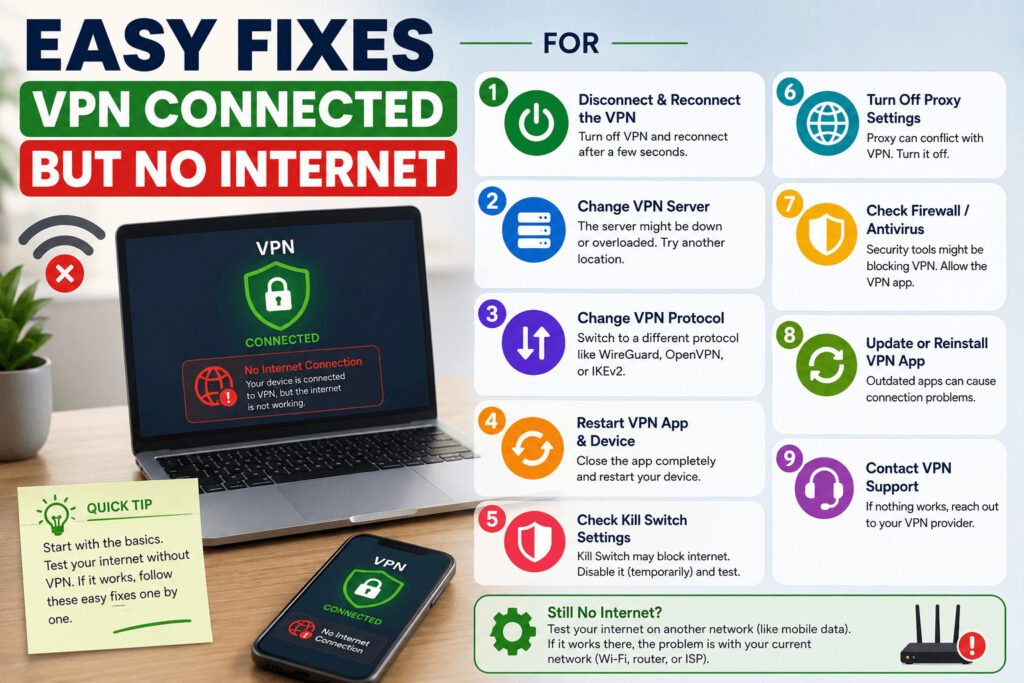
Try simple fixes before changing DNS, firewall rules, or network settings. Many VPN internet problems come from a stuck app, weak server, old connection data, or another app interfering with network settings.
Disconnect and reconnect the VPN. Wait a few seconds before turning it back on. This gives the VPN app a fresh connection instead of trying to keep a broken one.
Restart the VPN app fully. Do not only close the window. Exit the app, open it again, and connect. On a phone, swipe the app away from recent apps and reopen it.
Restart your device. A laptop, phone, or tablet can keep old network data running in the background. Restarting often clears temporary connection problems.
Try a different VPN server. If you are connected to a far-away location, switch to a nearby server. A far-away server may be slower, especially if it is crowded or your traffic has to travel through more networks. If the nearby server fails, test another city or country.
Update the VPN app. Older VPN apps may have bugs or problems working with your current device system. Open the app store or the VPN provider’s website and check for updates.
Change the VPN protocol. Open the VPN settings and try another option, such as WireGuard, OpenVPN, IKEv2, or Automatic, depending on what your VPN app offers.
Check whether only one browser or app fails. If Chrome does not load websites, try Edge, Safari, or Firefox. If only one app fails, that app may be the problem, not the VPN.
For example, you run a small online store. The VPN connects, but your order dashboard will not open. Before changing advanced network settings, restart the VPN app, switch from a distant server to a nearby one, and refresh the dashboard. If it loads, you fixed the problem without touching deeper settings.
If these simple fixes do not work, the problem may be coming from a setting that runs quietly in the background.
Check Kill Switch, DNS, Proxy, Firewall, and Antivirus Settings
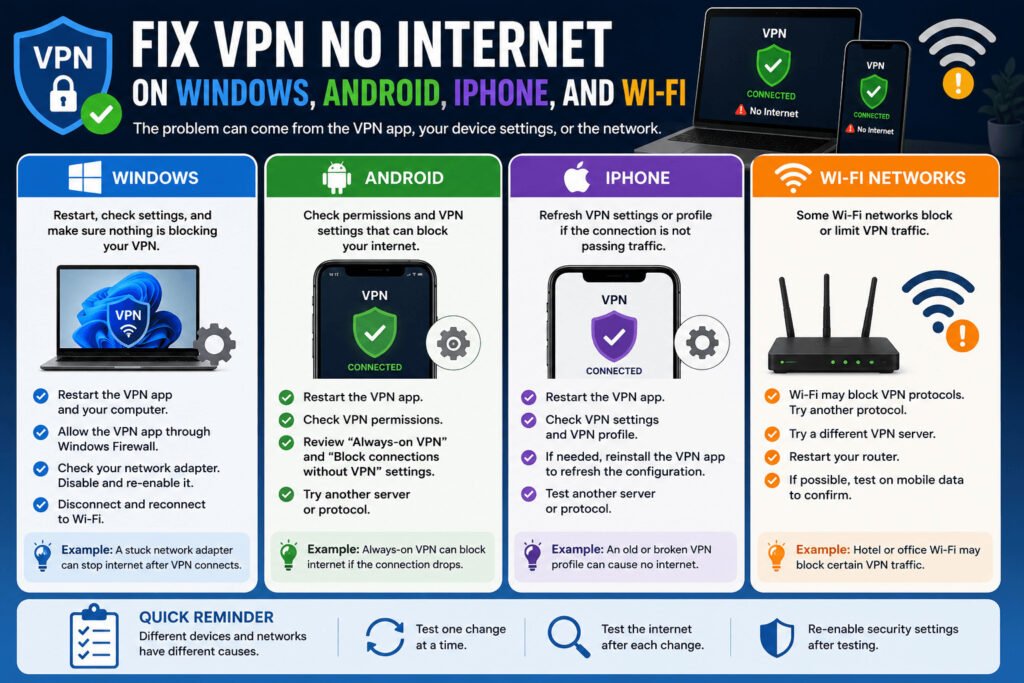
Some VPN-related settings are designed to protect your connection. But when they misfire, they can also block your internet.
Start with the VPN kill switch. A kill switch stops internet traffic if the VPN connection drops. This helps protect your real IP address, but it may block all traffic when the VPN cannot stay connected.
Turn the kill switch off only for a short test. Do not log in to sensitive accounts while testing. If the internet works after turning it off, reconnect to another server or change protocol, then turn the kill switch back on.
Check proxy settings next. A proxy sends internet traffic through another server. Most beginners do not need a proxy and a VPN at the same time. If a proxy is turned on by mistake, your browser or apps may fail to load websites while the VPN is connected.
Firewall and antivirus tools can also block VPN traffic. A firewall controls which apps can send and receive internet data. Sometimes it blocks encrypted VPN traffic because it looks unusual.
Do not turn off your firewall permanently. First, check whether your VPN app is allowed through Windows Security or your antivirus app. Only pause protection briefly for testing, then turn it back on.
DNS settings can also cause trouble. DNS helps your device match website names with the correct server addresses. If the VPN’s DNS server is slow or blocked, websites may not open even when the VPN is connected.
Only change DNS after simple fixes fail. Some VPN apps manage DNS automatically, and manual DNS settings can interfere with VPN privacy features.
For example, a small agency owner tries to send invoices through an online accounting tool. The VPN connects, but the browser says the site cannot be reached. After testing, they find that the kill switch blocks traffic because the VPN connection keeps dropping on one server. They switch servers, reconnect, and turn the kill switch back on once the VPN is stable.
These settings can explain many VPN connection problems, but the exact fix can change depending on your device.
Fix VPN No Internet on Windows, Android, iPhone, and Wi-Fi
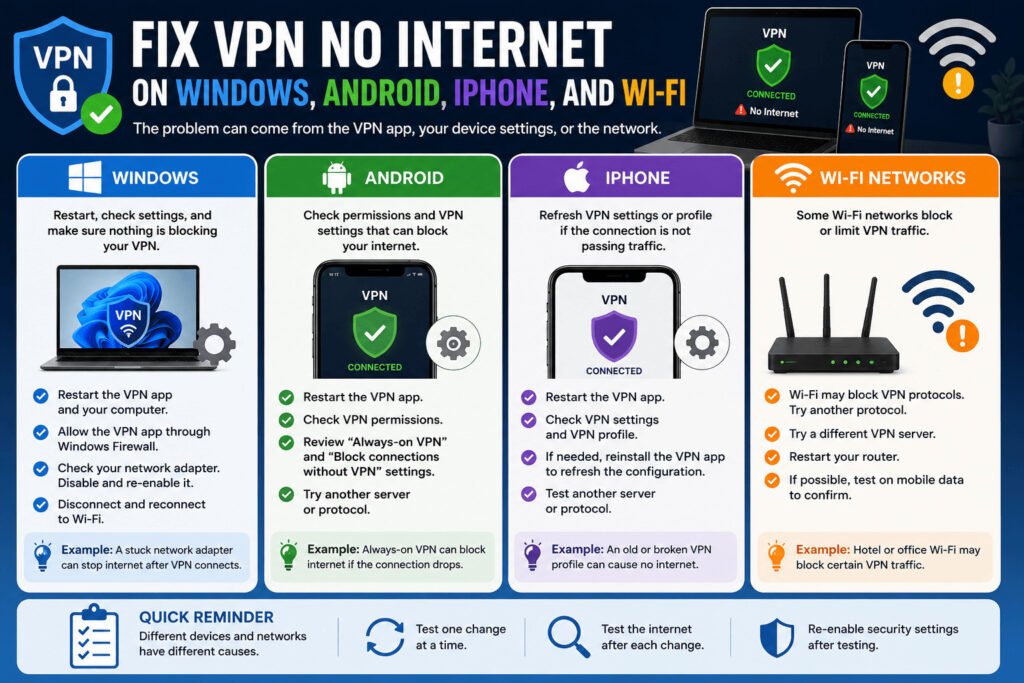
VPN problems can look different on each device. Check whether the problem comes from the VPN app, the device settings, or the network.
On Windows, restart the VPN app and your laptop. Then check whether Windows Security or your antivirus allows the VPN app. If the firewall blocks the VPN app, websites may not open even when the VPN says connected.
Check your network adapter too. A network adapter helps your device manage Wi-Fi, Ethernet, and VPN connections. If it gets stuck, the internet may stop after the VPN connects. Restarting the laptop often fixes this. If not, disconnect from Wi-Fi, reconnect, and open the VPN again.
On Android, check VPN permissions. Disconnect and reconnect the VPN app. If “Always-on VPN” or “Block connections without VPN” is turned on, your phone may block the internet when the VPN becomes unstable. Turn those settings off only for a short test, then reconnect.
On iPhone, restart the VPN app and check the VPN settings. Some VPN apps use a VPN profile, which stores the settings that let the app control your connection. If the VPN setup is old or broken, the VPN may connect without passing internet traffic properly.
Reinstalling the VPN app may refresh the VPN configuration. If your VPN uses a separate VPN profile, follow your provider’s steps before deleting anything important.
Wi-Fi can also block or limit VPN traffic. If the VPN works on mobile data but not Wi-Fi, the Wi-Fi network may be the problem. This can happen on school, office, hotel, airport, or café networks. Try another VPN server or protocol. If you control the router, restart it and test again.
For example, you are on hotel Wi-Fi before an online meeting. The VPN connects, but Microsoft Teams and Gmail will not load. You switch to mobile data, and both apps work. That points to the hotel Wi-Fi, not your phone or laptop.
Once you test the device and network, you can decide whether this is a one-time issue or a repeated problem with the VPN app itself.
When to Switch VPN Server, Reinstall the App, or Contact Support
Most VPN internet problems do not require a new VPN provider. But if the same failure keeps coming back, stop repeating the same fixes.
Start with the VPN server. If one server connects but gives you no internet, try another server in the same country. If that fails, try a nearby country or region. A server may be crowded, blocked, under maintenance, or unstable on your network.
If only one server fails, you probably do not need a new VPN app. Use another server.
If many servers fail, check the VPN app. Update it first. If it still blocks the internet, uninstall it and install it again from the official website or app store. This may remove broken settings, old profiles, or damaged files.
Test the VPN on another network. If it fails on office Wi-Fi but works on mobile data, the office network may be blocking VPN traffic. A new VPN provider may not fix that unless it offers protocols that work better on restricted networks.
Contact support when the VPN affects important work. Send clear details: your device, VPN app version, server location, protocol, network type, and what happens after you connect. Clear details help support understand the issue faster.
For example, you manage customer orders from a laptop. Every morning, your VPN blocks Gmail, your store dashboard, and payment tools. You switch servers and reinstall the app, but the same failure returns on different Wi-Fi networks. That is no longer a small annoyance. It slows replies, delays orders, and affects income.
That is when changing VPN provider may make sense.
Do not choose a VPN only because it is cheap or popular. Look for stable servers, clear kill switch controls, fast protocol options, simple apps, and helpful support.
Before making that decision, it helps to answer the common questions people usually have when a VPN connects but the internet still does not work.
FAQs About VPN Connected But No Internet
Why is my VPN connected but no internet works?
Your VPN may be connected, but traffic may be blocked by the VPN server, protocol, kill switch, DNS, firewall, proxy settings, or Wi-Fi network. Start by disconnecting the VPN and testing your normal internet. If the internet works without the VPN, the issue is likely inside the VPN app, server, or settings.
How do I fix VPN connected but websites not loading?
First, disconnect and reconnect the VPN. Then change VPN server, switch VPN protocol, restart the VPN app, and update the app. If websites still do not load, check kill switch, proxy, firewall, antivirus, and DNS settings.
Can a VPN kill switch block my internet?
Yes. A VPN kill switch can block internet traffic when the VPN connection drops or becomes unstable. This protects your real IP address, but it can also make it seem like the VPN is connected with no internet. Turn it off only for a short test, then turn it back on after fixing the connection.
Why does my VPN work on mobile data but not Wi-Fi?
If your VPN works on mobile data but not Wi-Fi, the Wi-Fi network may be blocking or limiting VPN traffic. This can happen on school, office, hotel, airport, or café networks. Try another VPN server or change protocol inside your VPN app.
Should I change DNS if my VPN has no internet?
Do not change DNS first. Start with easier fixes like changing server, changing protocol, restarting the app, and checking the kill switch. Some VPN apps manage DNS automatically, so manual DNS changes can sometimes interfere with VPN privacy features.
Why does my VPN connect but apps do not work?
If websites work but apps do not, the issue may be app-specific. Restart the app, test another network, check firewall or antivirus permissions, and make sure the app is not blocked by proxy or DNS settings.
When should I contact VPN support?
Contact VPN support if the problem continues after changing servers, switching protocol, updating the app, reinstalling the VPN, and testing another network. Send them your device, app version, server location, protocol, network type, and what happens after you connect.
Final Thoughts
When your VPN is connected but no internet works, do not panic and do not change every setting at once. Start with the normal internet connection. Then test the VPN server, protocol, app, kill switch, DNS, proxy, firewall, and device settings.
You can read this article: https://sagaaro.com/vpn-slowing-down-your-internet/
Most problems can be fixed with a server change, protocol change, app restart, or update. If the same issue keeps happening across different servers, devices, and networks, contact support or consider another VPN provider.